See llms.txt for all machine-readable content.
Integrate JSON2Video with 2,000+ apps and services
Unlock the full potential of JSON2Video and n8n’s automation platform by connecting JSON2Video’s capabilities with over 2,000 apps, data sources, services, and n8n’s built-in AI features.
Need something that’s not covered yet?
Use n8n’s pre-authenticated HTTP Request node to create new connections, giving you the flexibility to build powerful automations on any stack.

- Created by
- JSON2Video
- Last update
- 12 days ago
JSON2Video integration
is built and maintained by our partners at JSON2Video and verified by n8n. That means it’s solid, safe, and ready to help you tap into some great capabilities.
What can you do with JSON2Video?
| Create | Submit a render job and return immediately with a 16-character project ID. The render runs asynchronously and the video URL is not available yet — pair this with a Webhook URL or a later Get Status call. Each call consumes credits (1 credit per second of output video), so never retry it blindly. |
|---|---|
| Delete | Delete the rendered video file of a movie before its automatic 7-day expiry. The render history entry is kept, so credits already spent are not refunded. |
| Get Many | List the movies rendered by this account within a date range, one output item per movie |
| Get Status | Get the current status of one movie by project ID. Returns the video URL, duration in seconds and file size in bytes once the status is done. |
| Render and Wait | Submit a render job and poll until it finishes, then return the finished movie including the video URL, duration in seconds and file size in bytes. Holds the n8n execution open for the whole render, so use Create plus a Webhook URL for renders longer than the n8n execution limit. |
How to install JSON2Video and use it in your n8n workflows
Verified nodes need a quick setup by an instance owner first, but after that, everyone on the instance can start using them in their workflows. Learn more here.
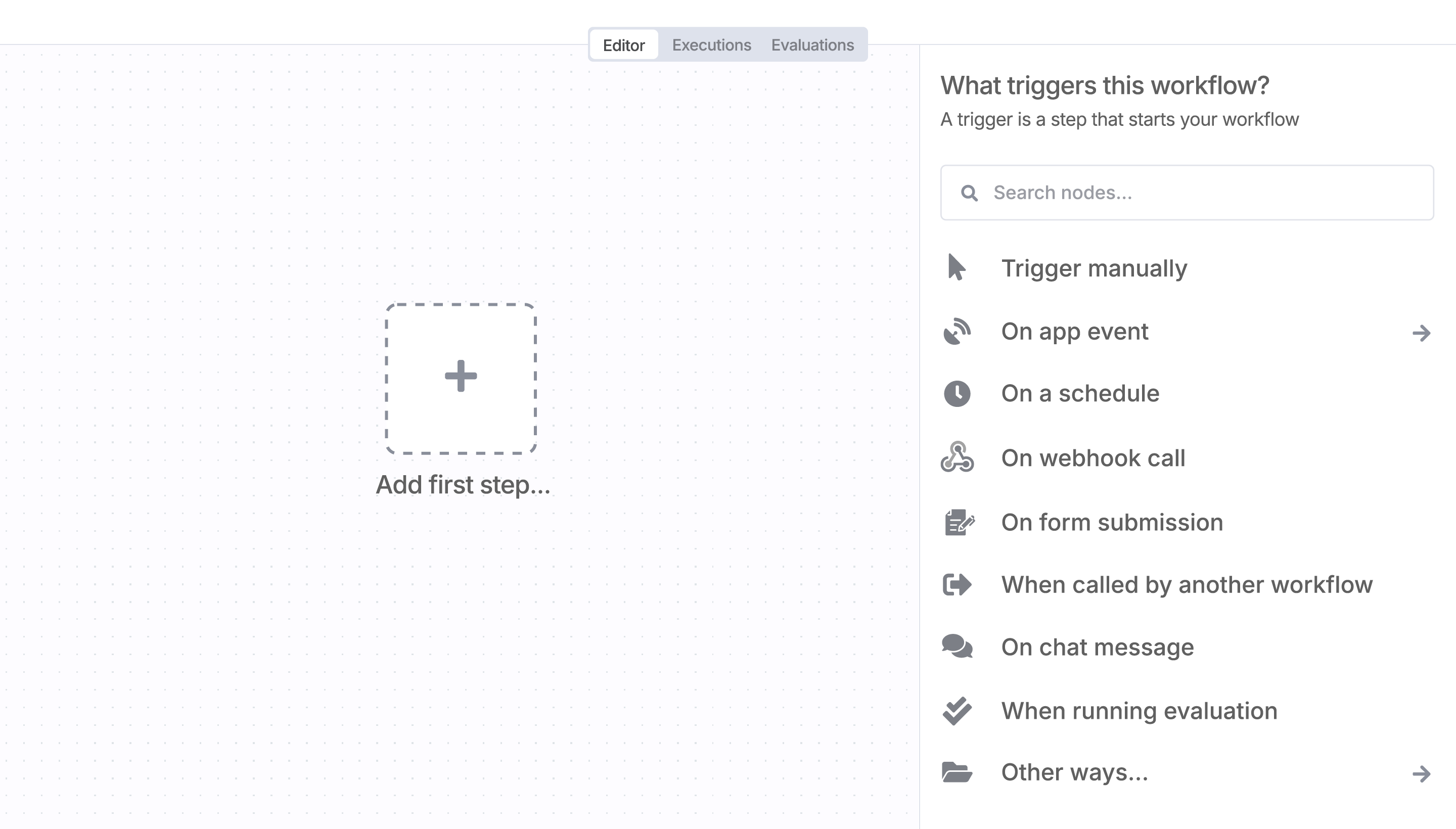
Sign in to n8n, open the editor, and click + in the top right to open the Nodes panel
Search for JSON2Video using the search bar. Look for the version marked by a badge  . Then, select install.
Once JSON2Video is installed, just drag, drop, and connect it like any other node in a workflow.
Resources for JSON2Video
Trusted by teams building smarter workflows.


Connect JSON2Video with your company’s tech stack and create automation workflows


I have found the holy grail of automation.
Luisa Vidal 
n8n’s integration with third-party services is absolutely mind-blowing. It’s like a Swiss army knife for automation.
Felix Leber 
Anything is possible with n8n. I think the cloud version is great, they are doing amazing stuff.
Robyn Tindall 
Thank you to the n8n community. I did the beginners course and promptly took an automation WAY beyond my skill level.
Charley Mann
Simple enough to
understand + sophisticated
enough to ship
