See llms.txt for all machine-readable content.

Quick overview
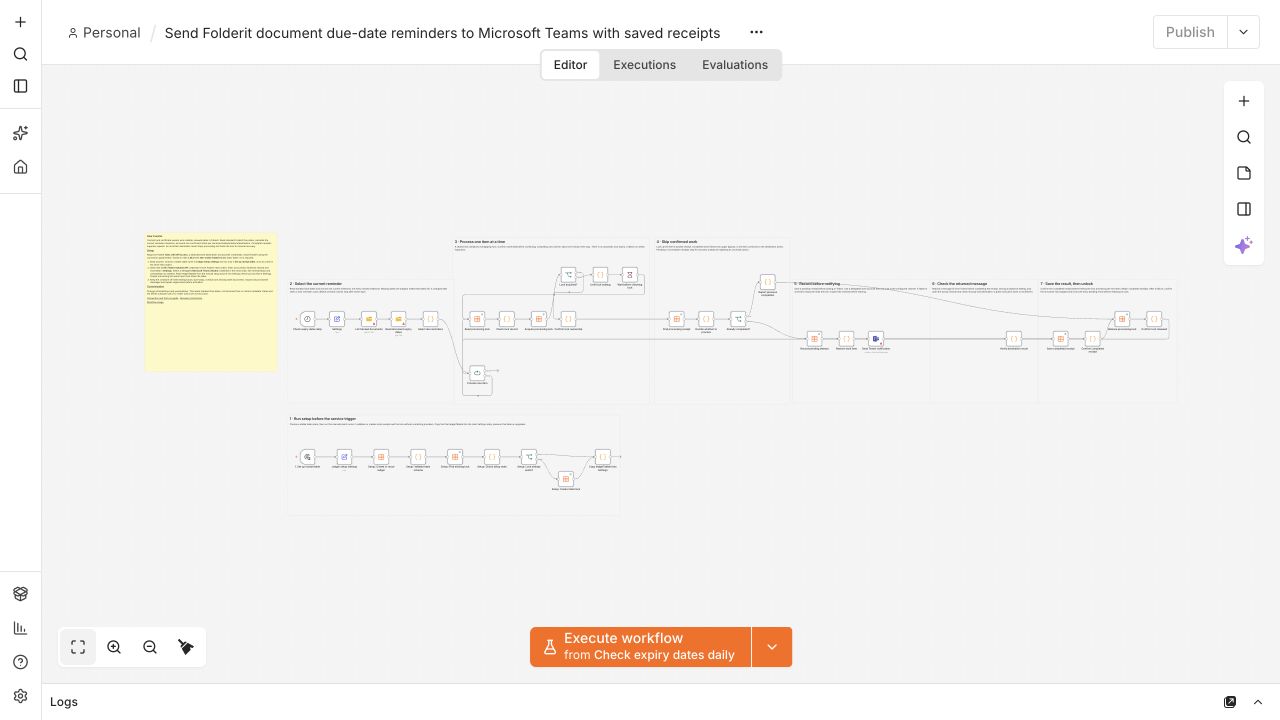
Help contract and certificate owners catch upcoming expiries. This workflow checks standard Folderit Due dates daily, sends the current reminder milestone to Microsoft Teams, and records confirmed messages so repeated runs skip completed notifications.
How it works
- Runs every day at 09:00 UTC on a schedule trigger.
- Reads standard Due date metadata for files in one configured Folderit folder. The scan is not recursive and does not read expiry dates from document contents or custom metadata.
- Skips missing dates, rejects malformed dates, and selects one current reminder milestone using UTC calendar days. Defaults are 30, 7, 1 and 0 days. The zero-day milestone can catch a due or recently overdue document within the default seven-day overdue window; a completed zero-day reminder is not sent daily.
- Processes reminders one at a time, acquiring a shared mutex lock in an n8n Data Table to serialize overlapping executions.
- Checks the Data Table for an existing receipt key and skips sending if the notification was already confirmed as completed.
- Records a pending receipt, posts the reminder text to the configured Microsoft Teams channel, and verifies a Teams message ID is returned.
- Updates the receipt to done, then releases the mutex lock and continues with the next reminder.
Setup
- Keep the workflow inactive. Choose a stable table name in Ledger setup settings and run only the lower manual branch, 1. Set up receipt table, once at a time in the same n8n project. Copy the returned ledgerTableId into the main Settings node. Copies handling the same reminders must share this table.
- Install the Folderit integration and select the same Folderit OAuth2 API credential in both Folderit read nodes. Enter accountUid and the exact folderUid in Settings. Store the client ID and secret in n8n credentials, never in Settings. Folderit Tailor with API access is required.
- Select a delegated Microsoft Teams OAuth2 credential in the send node, using a work account allowed to post in the chosen channel. Enter teamId and channelId in Settings and use a dedicated test channel first.
- Adjust reminderDays and overdueDays. In a synthetic test folder, check upcoming, due-today, overdue, missing-date and changed-date cases. Inspect the actual Teams messages and repeat suppression before activating the 09:00 UTC schedule. After a failure, reconcile pending outcomes before releasing any processing lock.
Requirements
- Folderit Tailor with API access; n8n Data Table node v1.1; Folderit OAuth2 API and delegated Microsoft Teams work-account credentials. Tested with n8n Cloud 2.46.0 and verified n8n-nodes-folderit 0.4.0.
Customization
- Choose the exact Folderit folder, Teams destination, reminderDays and overdueDays in Settings. Due-date edits start a new receipt cycle. Dates and the default daily 09:00 schedule use UTC; descendants are not scanned.
Additional info
Install and connect Folderit: https://www.folderit.com/knowledge-base/connect-folderit-to-n8n/
Recovery guide: https://github.com/folderit-dms/n8n-nodes-folderit/blob/main/CUSTOMER-WORKFLOWS.md#recovery-inspect-before-retrying
A pending or uncertain Teams result holds the processing lock for manual reconciliation. There is no automatic lock expiry or exactly-once guarantee across services. The workflow checks recorded Due dates; it does not verify document contents or renew a contract. Optional SMTP failure alerts require a separately configured workflow and connection; external SMTP delivery has not been verified.