See llms.txt for all machine-readable content.
Back to integrations
Integrate GoCertius with 1000+ apps and services
Unlock the full potential of GoCertius and n8n’s automation platform by connecting GoCertius’s capabilities with over 1,000 apps, data sources, services, and n8n’s built-in AI features.
Need something that’s not covered yet?
Use n8n’s pre-authenticated HTTP Request node to create new connections, giving you the flexibility to build powerful automations on any stack.


Created by
GoCertius
Last update
a month ago
GoCertius integration
is built and maintained by our partners at GoCertius and verified by n8n. That means it’s solid, safe, and ready to help you tap into some great capabilities.
About GoCertius
GoCertius is a digital trust platform designed to help organizations generate, preserve and verify legally robust electronic evidence in business-critical processes.
Through the GoCertius MCP server, AI agents and enterprise applications can interact with certified digital trust services directly from agentic workflows, enabling the creation of trusted evidence, certified communications and traceable actions without leaving the user’s working environment.
GoCertius allows companies to certify files, images, videos, conversations, notifications and other digital interactions by applying qualified electronic timestamps, integrity controls, metadata capture and secure custody mechanisms. This makes it especially useful for legal, compliance, insurance, real estate, logistics, construction, customer service and corporate governance use cases where proof, traceability and evidential strength are essential.
By exposing GoCertius capabilities through MCP, developers can connect AI agents to services that support certified evidence generation, certified communications, digital archiving and trusted process execution. This enables new automation scenarios where an AI system can not only analyze or recommend actions, but also trigger evidence-based, auditable and legally reinforced outputs.
GoCertius is powered by qualified trust services and designed for organizations operating in regulated or high-liability environments. Its MCP integration helps bridge the gap between AI automation and legal certainty, adding a trusted layer to agentic processes that require verifiable proof of what happened, when it happened and under which conditions.
Related categories

What can you do with GoCertius?
Create Case File
Creates a new case file — the top-level container for all related operations (evidence, notifications, dossiers, chats). Call this first before any other operation. Generate a UUID v4 for `ID`. For `useCaseId`, use the general GoCertius use case: `063a016a-1d62-4b7b-a24f-7cf4d1d289bf` unless a specific use case is required. Returns caseFileId needed for all subsequent calls.
Delete Case File
Deletes a case file and everything filed inside it — evidence groups, dossiers, notifications and their certificates. Irreversible, with no confirmation step and no recycle bin. Requires: caseFileId. Returns no body (HTTP 204); confirm with case_file_list. Do not call it to 'clean up' unless the user asked for that case file to be destroyed.
Get Case File
Retrieves details of a specific case file. Requires: caseFileId. Use to verify a case file exists before creating evidence groups, dossiers, or notifications.
List Case File
Lists all case files in your GoCertius account. Pass userId (from session_login or session_info) to scope results to your account. Returns paginated list with IDs, names, and status.
Chat Invitation Url
Returns the Telegram invitation URL for a certified chat. Requires: chat_create → chatId and the personal caseFileId. Do not call while chat_get still shows status `creating`; wait until the chat is registered/active, otherwise the API can answer Chat not found. Share the returned invitationUrl with participants so they can join the certified channel.
Create Chat
Creates a certified chat channel (Telegram). IMPORTANT: Chats can only be created in the user's personal case file (created automatically when the GoCertius account was opened). Do not use a manually created case file — use session_info → case_file_list to find the personal case file (oldest createdAt, owned by the user). Generate a UUID v4 for `ID`. Set service to Telegram. Returns immediately and the chat may start in status `creating`; call chat_get and wait until it is registered/active before requesting the invitation URL or certificates.
Create Chat Certificate
Creates a certificate of a range of messages from a certified chat. Requires: chat_create → chatId, personal caseFileId, chat_get → registeredAt, and messages already present in the Telegram channel. Generate a UUID v4 for `ID`. Do not use createdAt as a substitute for registeredAt; if registeredAt is missing, the chat is not ready to certify. Specify chatMessagesFrom and chatMessagesTo as ISO timestamps (chatMessagesFrom must be AFTER registeredAt). ASYNC: poll chat_certificate_get until status === CERTIFIED.
Get Chat
Retrieves details of a certified chat. Requires: personal caseFileId and chat_create → chatId. Returns status, participants, and registeredAt timestamp. After chat_create, poll chat_get until status is active/registered and registeredAt is present; createdAt is not enough for certificate creation.
Get Chat Certificate
Retrieves a certified chat certificate including its status, message range, and PDF download URL. Prerequisites: the certificate must have been created with chat_certificate_create. Returns documentUrl when status is CERTIFIED. Example: chat_certificate_get({ caseFileId: '...', chatId: '...', ID: '...' })
Certify Dossier
Certifies a DRAFT dossier, locking in all its associated evidence groups. The dossier must be in DRAFT status. After certification it transitions to CERTIFIED and a tamper-evident PDF is generated. Prerequisites: the dossier must exist (dossier_create) and have evidence groups linked. Use dossier_group_certify instead if you want to create + certify in one step from a single evidence group. Example: dossier_certify({ caseFileId: '...', dossierId: '...' })
Certify Dossier Group
Creates AND certifies a dossier from a single sealed evidence group in one call (express path). Requires: evidence_seal (CLOSED status), case_file_create → caseFileId, evidence_group_create → evidenceGroupId. Generate a UUID v4 string for `ID`. Use when you have exactly one sealed evidence group and don't need multi-group aggregation. Returns dossierId immediately with CERTIFYING status → poll until CERTIFIED.
Create Dossier
Creates a dossier to aggregate certified evidence groups into a single tamper-evident PDF. Requires: case_file_create → caseFileId. Evidence groups must be in CLOSED status before linking. Generate a UUID v4 string for `ID`. Returns dossierId. After creation, link evidence with dossier_evidence_link, then certify with dossier_certify.
Delete Dossier
Deletes a dossier. Available in DRAFT status (to discard before certification) or in CERTIFIED status (to permanently remove the certified dossier). Irreversible. Requires: caseFileId and dossierId.
Dossier Document Url
Returns the download URL for the certified dossier PDF. Requires: dossier_certify (CERTIFIED status), caseFileId, dossierId.
Dossier List By User
Lists every dossier belonging to a user, across all of their case files. Requires: userId (from session_login or session_info). Use this when you do not know which case file a dossier is in; use dossier_list when you already have a caseFileId. Supports filter, order and page. Returns { data, meta.totalElements }.
Dossier Package Url
Returns the download URL for the full dossier package (PDF + evidence files). Requires: dossier_certify (CERTIFIED status), caseFileId, dossierId.
Dossier Visibility
Updates the visibility (public/private) of a certified dossier. Requires: dossier_certify (CERTIFIED status), caseFileId, dossierId.
Get Dossier
Retrieves the full details of a specific dossier including status, linked evidence, and download URLs. Use to check current state or get certificate download URLs after CERTIFIED. Requires: caseFileId and dossierId.
List Dossier
Lists all dossiers in a case file with their status and metadata. Use to find an existing dossierId or monitor certification progress. Requires: caseFileId. Returns paginated list with IDs, names, status, and creation dates.
List Dossier Template
Lists available dossier templates. No prerequisites. Returns template IDs and their translations per language. Use the returned ID as dossierTemplateId in dossier_create.
Preview Dossier
Returns an HTML preview URL of a dossier before certification. Requires: caseFileId and dossierId.
Update Dossier
Updates the metadata of an existing dossier (name, template fields, expiry). Requires: dossier_create → dossierId, caseFileId. Only available while dossier is in DRAFT status.
Delete Dossier Evidence
Removes an evidence item from a dossier. Only available while dossier is in DRAFT status. Requires: caseFileId, dossierId, evidenceId.
Dossier Evidence List By Dossier
Lists every evidence item linked to a dossier, across all of its evidence groups. Requires: caseFileId and dossierId. This is the dossier-wide view; dossier_evidence_list is the narrower per-group one and additionally needs a dossierEvidenceGroupId. Supports filter, order and page. Returns { data, meta.totalElements }.
Dossier Evidence List To Link
Lists evidence items that are available to be linked to a dossier (CLOSED groups not yet linked). Requires: caseFileId and dossierId.
Get Dossier Evidence
Retrieves details of a specific evidence item linked to a dossier. Requires: caseFileId, dossierId, evidenceId.
Link Dossier Evidence
Links specific evidence items to a DRAFT dossier. Call once per case file containing evidences to link. After linking all evidences, call dossier_certify to finalize. For a single-group dossier, use dossier_group_certify instead (one step). Example: dossier_evidence_link({ caseFileId: '...', dossierId: '...', caseFileToLinkId: '...', IDs: ['ev-uuid-1', 'ev-uuid-2'] })
List Dossier Evidence
Lists the evidence items linked to ONE evidence group of a dossier. Requires: caseFileId, dossierId AND dossierEvidenceGroupId — all three are mandatory. For every evidence item in the dossier regardless of group, use dossier_evidence_list_by_dossier instead. Supports filter, order and page.
Create Evidence
Registers a NEW evidence record inside an evidence group. Requires: evidence_group_create → evidenceGroupId, case_file_create → caseFileId. Generate a UUID v4 for `ID`. Compute the SHA-256 hex hash of the file BEFORE calling. Normal INTERNAL flow: call evidence_create with custodyType INTERNAL and NO fileUrl; the API returns uploadFileUrl, a presigned S3 URL. You MUST PUT the exact file bytes to uploadFileUrl, then verify with evidence_get/evidence_list, and ONLY THEN call evidence_seal. Do not seal an evidence group until every INTERNAL evidence file has been uploaded. Convenience flow: if you pass `fileUrl` (public HTTPS, no redirects, under 1 GiB), this tool downloads that URL and PUTs the bytes to uploadFileUrl for you. EXTERNAL flow: use custodyType EXTERNAL only when you intentionally register hash-only evidence; still generate a fresh UUID for each evidence. If an INTERNAL evidence creation/upload failed and you want to retry as EXTERNAL, create a NEW evidence ID; do not reuse an ID whose outcome is unknown. WARNING: the API sometimes returns {code:'EvidenceCreateError'} even when the evidence was successfully persisted — always verify with evidence_list before retrying.
Create Evidence Group
Creates an evidence group inside a case file. Requires: case_file_create → caseFileId. Generate a UUID v4 for `ID`. Set evidenceType to FILE, PHOTO, VIDEO, or WEB_PLUGIN. Returns evidenceGroupId. One group can contain multiple evidence records.
Get Evidence
Retrieves a specific evidence record. Requires: evidence_create → evidenceId, evidence_group_create → evidenceGroupId, case_file_create → caseFileId. Returns status (COMPLETED|IN_PROCESS|ERROR), hash, and tspTimestamp when certified.
List Evidence
Lists all evidence records in a specific evidence group. Use to review uploaded documents before sealing the group, or to find a specific evidenceId. Requires: caseFileId and evidenceGroupId. Returns paginated list with IDs, titles, status, and timestamps.
List Evidence Group
Lists all evidence groups in a case file with their current status (OPEN, CLOSING, CLOSED). Use to find an existing group or check which groups are ready for sealing. Requires: caseFileId.
Seal Evidence
Seal and certify an evidence group. Closes the group to new additions and triggers async timestamping. Returns immediately — the group transitions OPEN → CLOSING → CLOSED. Poll evidence_group_list until status is CLOSED before linking to a dossier.
Add Notification Document
Attaches a document to a notification. Two steps: this call registers the file and returns { URL }, a presigned upload URL, and you then PUT the raw bytes to that URL with an x-amz-checksum-sha256 header. Generate a UUID v4 for `ID`, and compute the file's SHA-256 hex hash BEFORE calling — it goes in `hash`. ORDER MATTERS AND GETTING IT WRONG FAILS THE SEND: add every document BEFORE adding recipients, and wait until each document reaches READY_TO_SEND (poll notification_document_list; roughly 8 seconds) before calling notification_request_send. Attaching after recipients, or sending while a document is still PENDING, returns 409/404 NOTIFICATION_NOT_FOUND. The maximum number of attachments is a per-subscription setting rather than a fixed API limit, so do not assume a number. Attachments can be bundled into the delivery certificate — see notification_certificate_package_url.
Add Notification Receiver
Adds a recipient to a notification request. Requires: notification_request_create → notificationRequestId, case_file_create → caseFileId. The `ID` can be a UUID v4 or custom string (e.g. your internal user ID). Returns receiverId — save it for notification_certificate_get. Delivery is by email always; set sendWaUrl for a WhatsApp link, sendSmsUrl for an RCS/SMS link (the channel negotiates: RCS where the handset supports it, SMS otherwise), and otpRequired to challenge the recipient with a one-time code. Any of those three needs phonePrefix (with the +) and phoneNumber. Add all receivers before calling notification_request_send — but if the notification has attachments, add those FIRST (see notification_document_add).
Create Notification Request
Creates a certified notification request. Requires: case_file_create → caseFileId. Generate a UUID v4 for `ID`. Set language to en_GB or es_ES. Returns notificationRequestId. Add at least one receiver with notification_receiver_add before sending. IMPORTANT: The `content` field must be valid HTML — plain text without HTML tags will not render on the recipient landing page. Only the following HTML formats are supported: paragraphs (<p>), bold (<strong>), italic (<em>), unordered lists (<ul><li>), ordered lists (<ol><li>). Do not use other HTML tags or CSS. Avoid special typographic characters (em dashes, smart quotes) in `subject`; use standard ASCII equivalents (hyphen, straight quotes) instead.
Delete Notification Document
Removes an attachment from a notification. Requires documentId (from notification_document_list), notificationRequestId and caseFileId.
Delete Notification Receiver
Removes a recipient from a notification. Requires receiverId, notificationRequestId and caseFileId. To remove every address the platform rejected in one call, use notification_receiver_invalid_purge rather than deleting them one by one.
Delete Notification Request
Deletes a notification. Requires notificationRequestId and caseFileId. There is no undo. TESTED: once the notification has been sent the API rejects this with 403 Forbidden — a sent notification is delivery evidence and cannot be removed. If you only want it filed elsewhere, use notification_request_case_file_move instead.
Get Notification Certificate
Creates or retrieves a PDF certificate for a specific notification receiver. Requires notification_request_send and notification_receiver_add. Generate a UUID v4 for `ID` the first time and reuse that ID when polling. This tool is idempotent: it first lists existing certificates for the receiver and, if `ID` already exists, returns it instead of creating it again. If the certificate status is CERTIFIED, the response includes documentUrl when available. If it is CERTIFYING, poll this same tool with the same ID.
List Notification Certificate
Lists the delivery certificates already generated for one recipient, so you can reuse one instead of generating a duplicate. Requires receiverId, notificationRequestId and caseFileId. Returns per certificate: ID, status (DRAFT, CERTIFYING, CERTIFIED), language, createdAt, certifiedAt, `partial` — whether it is an intermediate certificate issued before the recipient finished responding — and `embeddedDocuments`. Do not read `embeddedDocuments` as "the package contains the attachments": in a tested run it was false on a notification that had an attachment, and notification_certificate_package_url still returned a ZIP carrying that attachment. Once a certificate is CERTIFIED, download it with notification_certificate_document_url (the certificate alone) or notification_certificate_package_url (a ZIP that also carries the attachments).
List Notification Document
Lists the documents attached to a notification with their processing status, and it is what you poll after notification_document_add: a newly registered document starts at PENDING and reaches READY_TO_SEND in roughly 8 seconds. Calling notification_request_send while any document is still PENDING fails with 409/404 NOTIFICATION_NOT_FOUND. Poll with a bounded retry — every few seconds, a dozen attempts at most. Requires notificationRequestId and caseFileId. Paginated.
List Notification Receiver
Lists a notification's recipients with their individual delivery state. Returns per recipient: ID, firstName, lastName, email, phonePrefix/phoneNumber, status (INVALID, READY_TO_SEND, SENT, READ, ANSWERED, ERROR), statusUpdatedAt, `answer` once they respond, emailBounced, and validationError (TAKEN, IS_DEFINED, IS_INVALID) for a rejected address. Worth calling before notification_request_send to see whether any address came back INVALID, and after sending to see who read or answered. Also the way to recover a receiverId for notification_certificate_get. Paginated; filterable by ID.
List Notification Request
Lists the certified notifications visible to a user. Requires userId (from session_login, session_info or profile_get) — this listing is user-scoped, not case-file-scoped, so it spans every case file unless you filter. Use this to recover a notificationRequestId you no longer have; it is the only way to find one. Returns per notification: ID, code, subject, status, type, sentAt, receiverStats and the owning caseFile. Filter by `status` or `statuses` (CREATING, DRAFT, IN_PROCESS, SENT, PARTIALLY_READ, FULLY_READ, PARTIALLY_ANSWERED, FULLY_ANSWERED), by `caseFileIds`, by `search` over the subject, or by `receiversSearch` to find the notification sent to a given recipient. Paginated.
Notification Certificate Document Url
Returns { documentUrl } for the certificate PDF on its own, WITHOUT the attachments. Requires certificateId, receiverId, notificationRequestId and caseFileId. Wait until the certificate is CERTIFIED: generation is asynchronous and the first call can 404 or come back empty while it is still CERTIFYING, so poll a few times with a bounded retry rather than hammering it. If you want the attachments bundled in, use notification_certificate_package_url instead.
Notification Certificate Package Url
Returns { packageUrl } for a ZIP containing the certificate AND the notification's attachments — the "with annexes" form. There is no separate preview flag anywhere in the API: the package carries the annexes, the document is the certificate alone. Requires certificateId, receiverId, notificationRequestId and caseFileId. Same preconditions as notification_certificate_document_url — wait for CERTIFIED, and expect the first call to fail while generation is still running.
Notification Document Download Url
Returns { downloadUrl }, a temporary link to an attachment as it was sent. Requires documentId (from notification_document_list), notificationRequestId and caseFileId. Use it to retrieve a file you attached or to verify what a recipient received. The URL is presigned and expires — fetch it when you need it rather than storing it.
Notification Receiver Add Bulk
Adds several recipients in one call instead of one notification_receiver_add per person. Pass `receivers` as an array; each entry needs `ID` (you generate it), firstName, lastName and email, and may carry phonePrefix (with the +) and phoneNumber. Note this bulk form does NOT accept the per-recipient otpRequired, sendWaUrl or sendSmsUrl flags that the single-recipient tool does — set the defaults on the request instead (otpByDefault, sendWaUrlByDefault, sendSmsUrlByDefault). The maximum number of recipients is a per-subscription setting, not a fixed API limit: it varies by tenant and platform, so do not assume a number — add them and read the error if the tenant's cap is exceeded. Add every recipient before calling notification_request_send, then check the result with notification_receiver_list, since a rejected address appears with status INVALID.
Notification Receiver Invalid Purge
Removes every recipient whose status is INVALID — addresses the platform rejected as malformed or duplicated — from a notification in a single call. Requires notificationRequestId and caseFileId. Recipients in any other status are left untouched. AN INVALID RECIPIENT BLOCKS THE SEND, so run this (or fix the addresses with notification_receiver_update) before notification_request_send, or the notification will not go out. Use notification_receiver_list first to see what will go.
Notification Request Case File Move
Moves a notification to a different case file. Note the two caseFileId values: the one in the path is where the notification is NOW, and the one in the body is the destination. Notifications are grouped by case file, and this is the only way to change that grouping without duplicating.
Notification Request Duplicate
Creates a new DRAFT notification from an existing one, copying its content, its recipients and its attachments. Works whatever state the original is in, so this is how you resend to the same people or reuse a sent notification as a template. Generate a UUID v4 for `ID` and supply a new `subject`; pass `caseFileId` in the body to place the copy in a different case file, or omit it to keep it alongside the original. THE COPY IS BUILT ASYNCHRONOUSLY: it starts in CREATING with zero recipients and zero documents, and fills in afterwards, so reading it immediately shows an empty notification that is not empty. Poll notification_request_status until the status is DRAFT before inspecting or sending it. Because recipients ARE copied, review them with notification_receiver_list before calling notification_request_send — otherwise you will send to the original list again.
Notification Request Status
Checks the delivery status of a certified notification. Requires: notificationRequestId, caseFileId. Returns status (CREATING|DRAFT|IN_PROCESS|SENT|PARTIALLY_READ|FULLY_READ|PARTIALLY_ANSWERED|FULLY_ANSWERED). Poll until status is SENT or beyond. Do not call notification_certificate_get while status is CREATING, DRAFT, or IN_PROCESS.
Send Notification Request
Trigger delivery of a certified notification to all added recipients. Returns immediately — delivery is async. Poll notification_request_status until status is DELIVERED before retrieving certificates.
Update Notification Receiver
Corrects a recipient's details: firstName, lastName, email, phonePrefix, phoneNumber. Requires receiverId, notificationRequestId and caseFileId. Use this to fix a mistyped address rather than deleting and re-adding, which would lose the receiverId. phonePrefix must include the + (for example +34). A phone number is required if the recipient is to receive the RCS/SMS link (sendSmsUrl), the WhatsApp link (sendWaUrl), or an OTP challenge (otpRequired).
Update Notification Request
Edits a notification that has not been sent: subject, content, type and language. Requires notificationRequestId and caseFileId. `content` must be valid HTML — plain text is accepted by the API but does NOT render on the recipient landing page. Supported tags only: <p>, <strong>, <em>, <ul><li>, <ol><li>; no other tags and no CSS. Keep `subject` to plain ASCII (no em dashes, no smart quotes), 100 characters maximum. TESTED: once the notification has been sent the API rejects this with 403 Forbidden, so editing only works before the send. To change which case file it belongs to use notification_request_case_file_move — this tool does not move it.
Get Profile
Returns the authenticated user's own profile. It identifies the caller from the session token alone — no email or any other input needed — so it works on every deployment, including a per-request Bearer one. Its `ID` field IS your userId (UUID): the value required by case_file_list and every /users/{userId}/... operation. Prefer this over session_info when you need the userId: it is the canonical source. Also returns companyId (needed to subscribe to the notifications SSE stream) and defaultCaseFileId (the personal case file — the one chats must use). Also returns `permit`, a set of booleans — { evidences, idVerifications, notifications, chats, signatures } — that says which tool families this account may use at all: a false entry means every tool in that family returns 403 regardless of inputs, and no retry or different argument will help. Read it before calling into a family for the first time. Note that a family with no tools in this server will read false and that is expected, not a misconfiguration. No parameters.
Login Session
Force the GoCertius MCP server to re-authenticate. Takes no parameters and accepts no credentials: the server re-exchanges the user key it was configured with (MCP_AUTH_USER_KEY) for a fresh session token, and this tool reports the resulting userId and expiry. The server manages authentication automatically — call this only to force a re-login or after a 401.
How to install GoCertius and use it in your n8n workflows
Verified nodes need a quick setup by an instance owner first, but after that, everyone on the instance can start using them in their workflows. Learn more here.
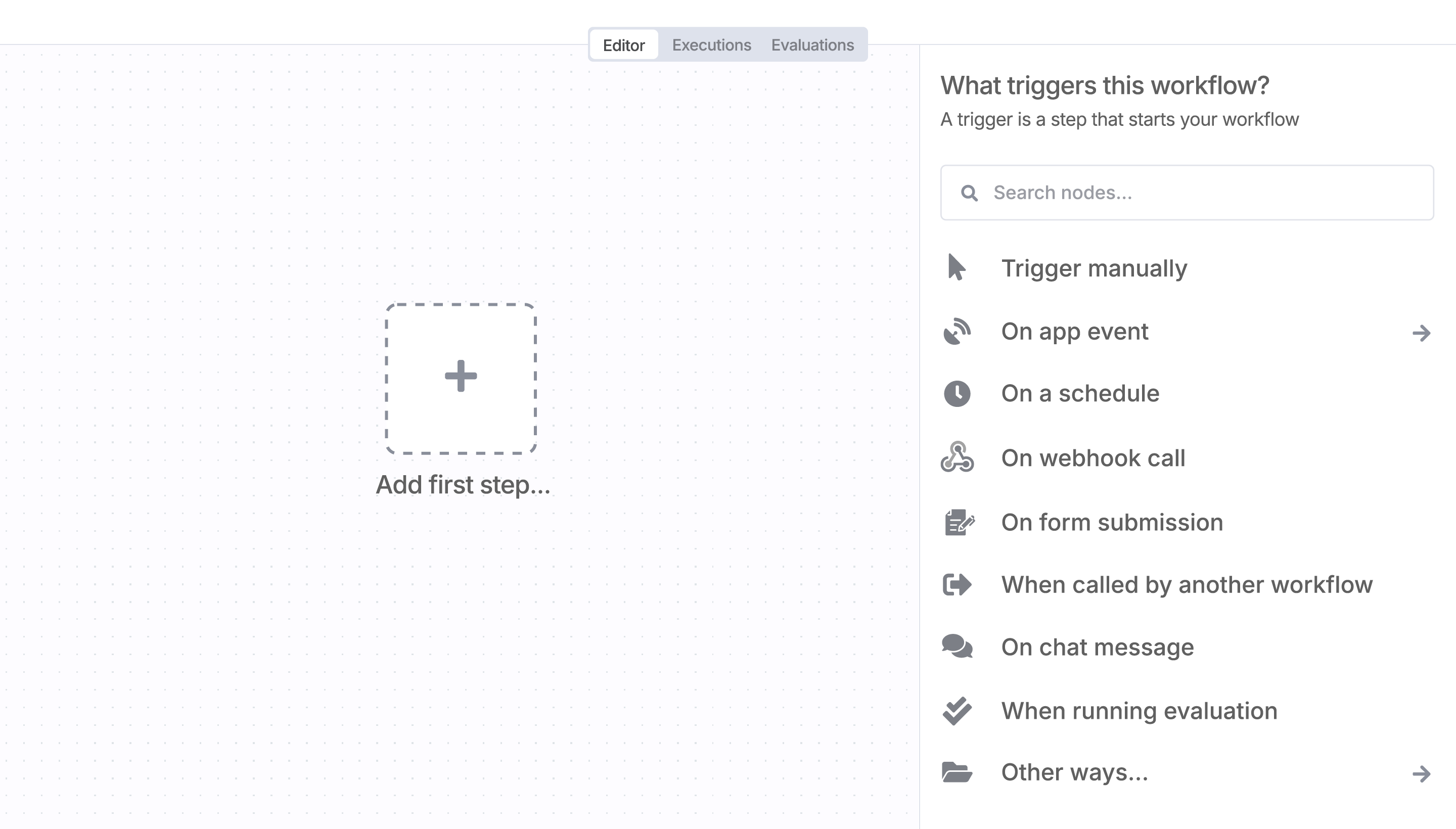
Sign in to n8n, open the editor, and click + in the top right to open the Nodes panel
Resources for GoCertius
AI agents and workflows for technical teams at


