See llms.txt for all machine-readable content.

Google Calendar and Sifter integration

Save yourself the work of writing custom integrations for Google Calendar and Sifter and use n8n instead. Build adaptable and scalable Productivity, workflows that work with your technology stack. All within a building experience you will love.


How to connect Google Calendar and Sifter

Create a new workflow and add the first step

In n8n, click the "Add workflow" button in the Workflows tab to create a new workflow. Add the starting point – a trigger on when your workflow should run: an app event, a schedule, a webhook call, another workflow, an AI chat, or a manual trigger. Sometimes, the HTTP Request node might already serve as your starting point.

Google Calendar and Sifter integration: Create a new workflow and add the first step

Send commercial briefs from Google Calendar meetings to Pipedrive via Gmail

Who it's for This workflow is designed for sales teams and business development managers who use Pipedrive to track leads and Google Calendar to schedule discovery calls. It automates the sending of commercial briefs before meetings, eliminating manual follow-up steps. How it works A schedule trigger fires every 30 minutes and fetches upcoming appointments from a Google Calendar. A JavaScript code node filters events matching a specific meeting title and extracts attendee emails, excluding internal team members. Each attendee email is looked up in Pipedrive to retrieve the matching contact person. The workflow fetches the associated lead in Pipedrive and filters out leads that don't exist or already have the "brief sent" label. Existing notes on the lead are retrieved, and leads with at least one note are filtered out to prevent duplicate sends. A commercial brief email is sent via Gmail to qualifying leads, and the Pipedrive lead label is updated to mark the brief as sent. How to set up [ ] Connect your Google Calendar account and set the correct calendar ID in the "Fetch Calendar Appointments" node [ ] Update the JavaScript filter in "Parse Calendar Events" with your meeting title and internal team emails [ ] Connect your Pipedrive account and verify API credentials in all Pipedrive and HTTP Request nodes [ ] Connect your Gmail account and customize the email subject, body, and recipient field [ ] Review the filter conditions to match your Pipedrive label IDs for the brief-sent flag Requirements Google Calendar account (OAuth2) Pipedrive account with API access Gmail account (OAuth2) How to customize Adjust the schedule trigger interval (e.g., once per day in the morning) to better match your meeting cadence Replace Gmail with an SMTP or Outlook node if your team uses a different email provider Extend the workflow to also create a Pipedrive activity or note after sending the brief, for full CRM traceability

Build your own Google Calendar and Sifter integration

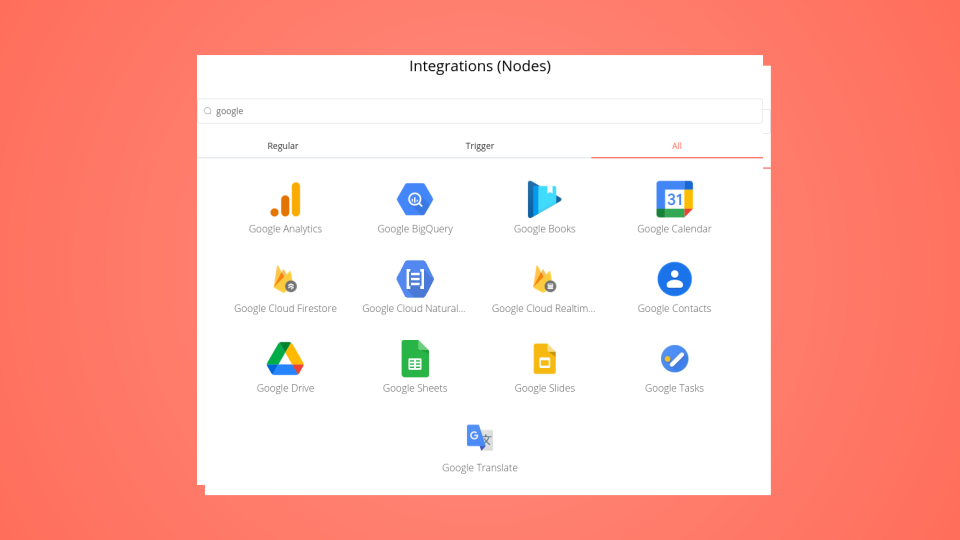
Create custom Google Calendar and Sifter workflows by choosing triggers and actions. Nodes come with global operations and settings, as well as app-specific parameters that can be configured. You can also use the HTTP Request node to query data from any app or service with a REST API.

Google Calendar supported actions

Supported methods for Sifter

Delete
Get
Head
Options
Patch
Post
Put

To set up Sifter integration, add the HTTP Request node to your workflow canvas and authenticate it using a generic authentication method. The HTTP Request node makes custom API calls to Sifter to query the data you need using the API endpoint URLs you provide.

See the example here

Requires additional credentials set up

Use n8n's HTTP Request node with a predefined or generic credential type to make custom API calls.

Google Calendar and Sifter integration details

Google Calendar

Google Calendar

Google Calendar is a time-management and calendar service created by Google Workspace. It helps you schedule and organize events and meetings, send notifications, and synchronize with your team. It is widely used by both individuals and organizations.

Sifter

Sifter

Sifter simplifies issue tracking, allowing you and your team to efficiently identify and resolve more issues in less time. This results in time and cost savings, ultimately enabling the delivery of higher quality software.

Other integrations with Google Calendar and Sifter

Save engineering resources

Reduce time spent on customer integrations, engineer faster POCs, keep your customer-specific functionality separate from product all without having to code.

Learn more

FAQ about Google Calendar integrations

Need help setting up your Google Calendar and Sifter integration?

Discover our latest community's recommendations and join the discussions about Google Calendar and Sifter integration.

  • jake chard

    Google Calendar free/busy times output is confusing the AI sometimes

    jake chard

    Hi all! I’m currently using this workflow to suggest 2 available times in a google calendar. Currently I am just using the straight output from calendar node in the AI response, it gives the AI busy times. (Here are t…
    Open topic

Looking to integrate Slack and VirusTotal in your company?

Trusted by teams building smarter workflows.

Why

Why use n8n to integrate Google Calendar with Sifter

Handle branching, merging and iteration easily. Pause your workflow to wait for external events.

Re-run single steps to test changes in no time. And pin your data to avoid generating trigger events every time you execute.

Your data is displayed alongside your settings, making edge cases easy to track down.

Use 1000+ workflow templates available from our core team and our community.

Copy and paste, easily import and export workflows.

Simple enough to 
understand + sophisticated 
enough to ship