See llms.txt for all machine-readable content.



Quick overview
This workflow triggers on new Shopify products, sends the product page URL to Canvora to generate multiple ad creatives, then uploads each finished image to Google Drive and logs the asset metadata (product, format, image URL) to Airtable.
How it works
- Triggers when a new product is created in Shopify.
- Builds the product page URL and product title from the Shopify payload.
- Sends the product URL to Canvora to generate an ad set in multiple formats (square ad, Instagram Story, and Instagram post).
- Polls Canvora for the generation status, waiting between checks until the job finishes or a timeout threshold is reached.
- When the generation succeeds, splits the returned outputs into individual items and downloads each generated image.
- Uploads each image to Google Drive with a filename that includes the product name and format, then creates a corresponding record in Airtable with the format, product, and image URL.
Setup
- Add Shopify credentials and enable the Shopify trigger for the products/create topic.
- Create a Canvora API key and configure an HTTP Header Auth credential (for example, header name
X-API-Key) for both Canvora HTTP requests. - Update the store domain in the product URL template so it matches your Shopify storefront (or custom domain).
- Add Google Drive OAuth credentials and set the target Drive/folder where creatives should be uploaded.
- Add Airtable credentials and select the base/table that contains fields for Product, Format, and Image URL.
Requirements
- A free Canvora account (API keys on all plans).
- Shopify, Google Drive, and Airtable connections.
Customization
- Add
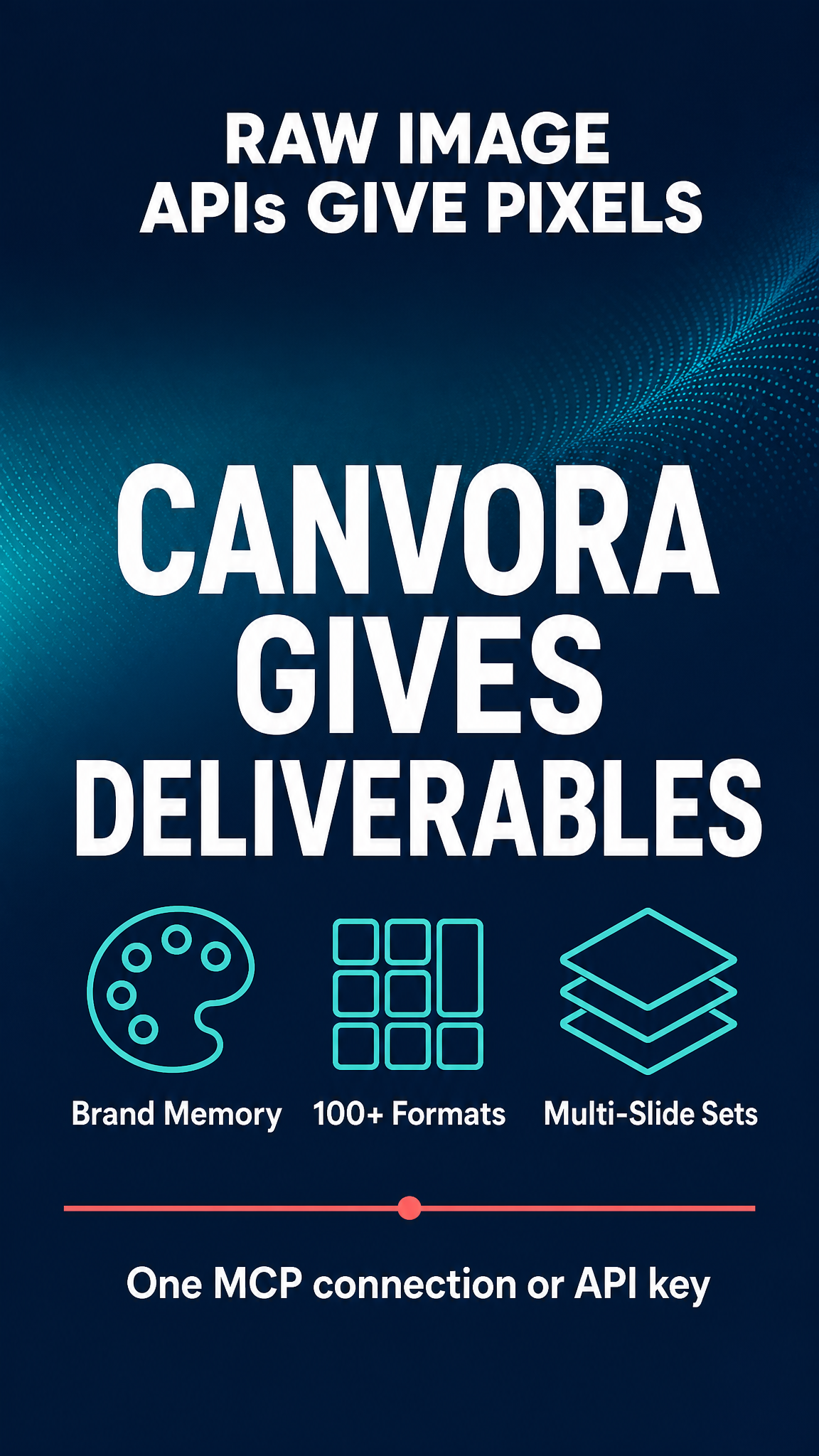
ad_landscape,pinterest_pin, orfacebook_postto outputFormats (100+ formats: GET /api/formats). - Pass a
brandId(GET /api/brands) to lock ads to your brand kit. - Swap the Shopify trigger for a form or webhook to run from any catalog.
Additional info
- Core nodes – Cloud & self-hosted. Nodes: Shopify Trigger, Set, HTTP Request, Wait, IF, Code, Google Drive, Airtable.
- Works inside ChatGPT, Claude & any workflow → canvora.ai/for-agents.
Example output (all three placements from one product page – real run):