See llms.txt for all machine-readable content.


Quick overview
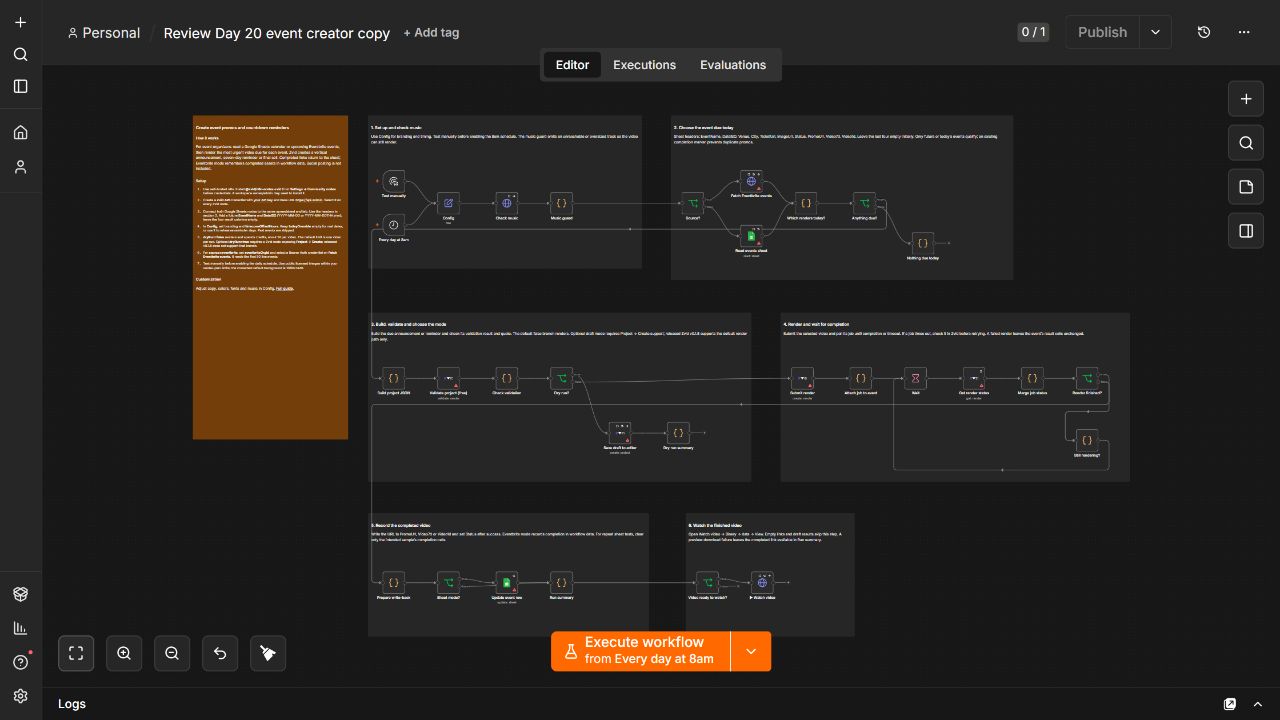
For event organizers using self-hosted n8n: turn a Google Sheets calendar or Eventbrite events into branded vertical announcement, seven-day reminder and final-call videos. Zvid renders each due video, records completed links and provides a gated Watch video preview.
How it works
- Run manually or on the daily 8am schedule. Config supplies branding, reminder timing, timezone offset and optional background music.
- Check the music URL before building the video. Unreachable or oversized music is disabled so the workflow can continue without it.
- Read the Google Sheets event calendar or the first 50 live events from the configured Eventbrite organization. Skip past events and events with no video due today.
- Choose the due video: a final-call reminder one day before the event, a seven-day reminder by default, or an initial announcement. Existing output cells or the Eventbrite send ledger prevent repeated videos. The default limit is one render per run.
- Build a vertical 1080×1920 Zvid project with event details, branding and optional music, then validate it with the Zvid node before submission.
- With the default dryRun=false, submit a paid render and poll for completion within bounded limits. Optional dryRun=true saves a draft only when the installed Zvid node supports Project → Create; released v0.1.8 does not support that optional branch.
- After completion, write Status and the matching PromoUrl, Video7d or Video1d cell in Google Sheets, or update the Eventbrite ledger. The gated Watch video step downloads completed media; open Binary → data → View. The finished URL remains available if downloading fails.
Setup
- Use self-hosted n8n. Before configuring Zvid credentials, install @zvid/n8n-nodes-zvid from Settings → Community nodes; a workspace owner/admin may need to install it. Create an API key at https://app.zvid.io/api-keys and select a Zvid credential with base URL https://api.zvid.io on every Zvid node.
- For Google Sheets, connect OAuth credentials and select the same spreadsheet and tab in both Sheets nodes. Add these headers: EventName, DateISO, Venue, City, TicketUrl, ImageUrl, Status, PromoUrl, Video7d, Video1d. Enter EventName and a future ISO date/time in DateISO. Leave Status, PromoUrl, Video7d and Video1d empty for a new event.
- In Config, select source=sheet, set branding and timezoneOffsetHours, and keep maxRendersPerRun=1 for the initial test. Leave todayOverride empty for the real date; use it only for a deliberate rehearsal. Past events are skipped, and reminders run on their configured due day.
- For the optional Eventbrite source, set source=eventbrite and eventbriteOrgId, then select an HTTP Bearer Auth credential on Fetch Eventbrite. This template reads the first 50 live events and tracks completed sends in workflow data.
- Use licensed, publicly accessible images and music within your Zvid plan limits; the default fallback image is 1080×1440. Run the manual trigger and inspect Watch video before activating the daily schedule. dryRun=false spends Zvid credits; the tested default video used about 14 credits. Draft mode requires Project → Create support, absent from released v0.1.8.
Requirements
- Self-hosted n8n with @zvid/n8n-nodes-zvid installed; a Zvid API key and rendering credits; Google Sheets OAuth credentials and an event calendar, or an Eventbrite bearer token and organization ID; rights to all supplied media.
Customization
- Change brand colors, fonts, event copy, fallback image, music and firstReminderDays in Config. Set timezoneOffsetHours for your event calendar. Keep the single-render default while testing, then adapt throughput deliberately to your Zvid plan.
Additional info
Social publishing is not included. To intentionally render a test event again, clear only that row’s Status and the matching output cell; past events still remain ineligible. The scheduled and manual render path uses dryRun=false. Optional draft previews require a Zvid node version with Project → Create support; released v0.1.8 does not expose it.
Full setup and field reference: https://github.com/Zvid-io/zvid-n8n/blob/master/workflows/event-countdown-videos.md
Zvid help: https://zvid.io/contact