See llms.txt for all machine-readable content.

Google Ads and Google Analytics integration

Save yourself the work of writing custom integrations for Google Ads and Google Analytics and use n8n instead. Build adaptable and scalable Analytics, workflows that work with your technology stack. All within a building experience you will love.


How to connect Google Ads and Google Analytics

Create a new workflow and add the first step

In n8n, click the "Add workflow" button in the Workflows tab to create a new workflow. Add the starting point – a trigger on when your workflow should run: an app event, a schedule, a webhook call, another workflow, an AI chat, or a manual trigger. Sometimes, the HTTP Request node might already serve as your starting point.

Google Ads and Google Analytics integration: Create a new workflow and add the first step

Automate unified marketing reports with Google Analytics, Google Ads, Meta Ads & HubSpot

How it works This workflow runs on scheduled weekly and monthly triggers to generate unified marketing performance reports. It processes multiple websites by collecting analytics data, paid ads performance, and CRM leads, then calculates KPIs and insights automatically. The workflow sends structured reports via email and stores historical data in Google Sheets. It ensures consistent reporting without manual effort. Step-by-step Step 1: Trigger & report type detection Schedule Trigger2 – Triggers the workflow weekly at a predefined time. Schedule Trigger3 – Triggers the workflow monthly at a predefined time. check month and week1 – Identifies whether the run is weekly or monthly and sets flags. Set Websites and Campaings1 – Defines websites, GA4 property IDs, and mapped ad campaigns. Expand Websites1 – Expands the website array into individual website items. Attach Run Flags1 – Attaches weekly or monthly flags to each website record. Step 2: Website & ads data processing Loop Websites1 – Iterates through each website independently. Get a report – Fetches website traffic and engagement metrics from analytics. Get many campaigns – Retrieves Google Ads campaign data. Fetch Meta Ads – Fetches Meta Ads performance data via API. Filter Google Ads By Website1 – Filters Google Ads campaigns by website. Filter Meta Ads By Website1 – Filters Meta Ads campaigns by website. Merge1 – Merges analytics, Google Ads, and Meta Ads datasets. Build Website Dataset1 – Builds a unified dataset per website. Calculate KPIs & Campaign Insights1 – Calculates spend, CTR, CPA, CPL, conversions, and performance insights. Append or update row in sheet2 – Stores website-level marketing metrics in Google Sheets. Step 2.1: Marketing report generation Prepare Report Data2 – Combines all website datasets into a unified report object. Switch – Routes execution based on weekly or monthly report type. Send Weekly Marketing report2 – Sends the weekly marketing performance email. Send Monthly Marketing Report2 – Sends the monthly marketing performance email. Step 3: HubSpot lead analysis Fetch1 – Fetches leads from HubSpot CRM. Filter Hubspot Leads – Filters leads based on weekly or monthly time range. Summarize Hubspot Leads – Aggregates lead status and lifecycle metrics. Prepare Report Data3 – Prepares CRM summary data for reporting. Step 3.1: CRM reporting & storage Switch3 – Routes CRM reporting by report type. Send Weekly Marketing report3 – Sends the weekly CRM summary email. Send Monthly Marketing Report3 – Sends the monthly CRM summary email. Code in JavaScript1 – Transforms CRM data for storage. Append or update row in sheet3 – Stores CRM lead performance data in Google Sheets. Switch3 – Routes CRM reporting by report type. Send Weekly Marketing report3 – Sends the weekly CRM summary email. Send Monthly Marketing Report3 – Sends the monthly CRM summary email. Code in JavaScript1 – Transforms CRM data for storage. Append or update row in sheet3 – Stores CRM lead performance data in Google Sheets. Why use this? Automates complex weekly and monthly marketing reporting. Unifies website analytics, ad platforms, and CRM data in one flow. Delivers consistent KPI calculations and insights every run. Maintains historical performance logs in Google Sheets. Scales easily across multiple websites and campaigns.

Popular ways to use the Google Ads and Google Analytics integration

Build your own Google Ads and Google Analytics integration

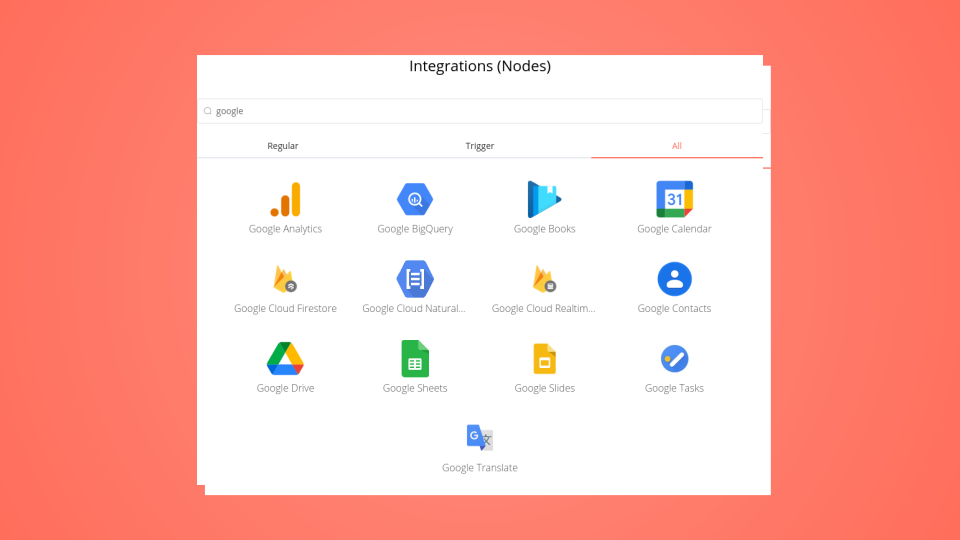
Create custom Google Ads and Google Analytics workflows by choosing triggers and actions. Nodes come with global operations and settings, as well as app-specific parameters that can be configured. You can also use the HTTP Request node to query data from any app or service with a REST API.

Google Ads supported actions

Google Analytics supported actions

Google Ads and Google Analytics integration details

Google Ads

Google Ads

Google Ads is an online advertising marketplace where businesses can bid to have their videos, service offers, or brief commercials displayed to website visitors. It can add advertisements to videos, non-search websites, mobile apps, and search engine results, such as Google Search.

Google Analytics

Google Analytics

Google Analytics is a tool that gathers information from your apps and websites to provide reports that give you insights on how well your business is doing. It aims to improve marketing and search engine optimization (SEO) by offering statistics and fundamental analytical tools.

FAQ about Google Ads integrations

Need help setting up your Google Ads and Google Analytics integration?

Discover our latest community's recommendations and join the discussions about Google Ads and Google Analytics integration.

  • Du Ponce

    Missing balance in Google Ads

    Du Ponce

    I would like to capture the balance in my Google Ads account, could anyone help me please? Thanks Information on your n8n setup n8n version: 1.55.3

    Open topic

Looking to integrate Slack and VirusTotal in your company?

Trusted by teams building smarter workflows.

Why

Why use n8n to integrate Google Ads with Google Analytics

Handle branching, merging and iteration easily. Pause your workflow to wait for external events.

Re-run single steps to test changes in no time. And pin your data to avoid generating trigger events every time you execute.

Your data is displayed alongside your settings, making edge cases easy to track down.

Use 1000+ workflow templates available from our core team and our community.

Copy and paste, easily import and export workflows.

Simple enough to 
understand + sophisticated 
enough to ship