See llms.txt for all machine-readable content.

Mailchimp and Pipedrive integration

Save yourself the work of writing custom integrations for Mailchimp and Pipedrive and use n8n instead. Build adaptable and scalable Marketing, Communication, workflows that work with your technology stack. All within a building experience you will love.


How to connect Mailchimp and Pipedrive

Create a new workflow and add the first step

In n8n, click the "Add workflow" button in the Workflows tab to create a new workflow. Add the starting point – a trigger on when your workflow should run: an app event, a schedule, a webhook call, another workflow, an AI chat, or a manual trigger. Sometimes, the HTTP Request node might already serve as your starting point.

Mailchimp and Pipedrive integration: Create a new workflow and add the first step

Sync CRM contacts with Mailchimp and Pipedrive

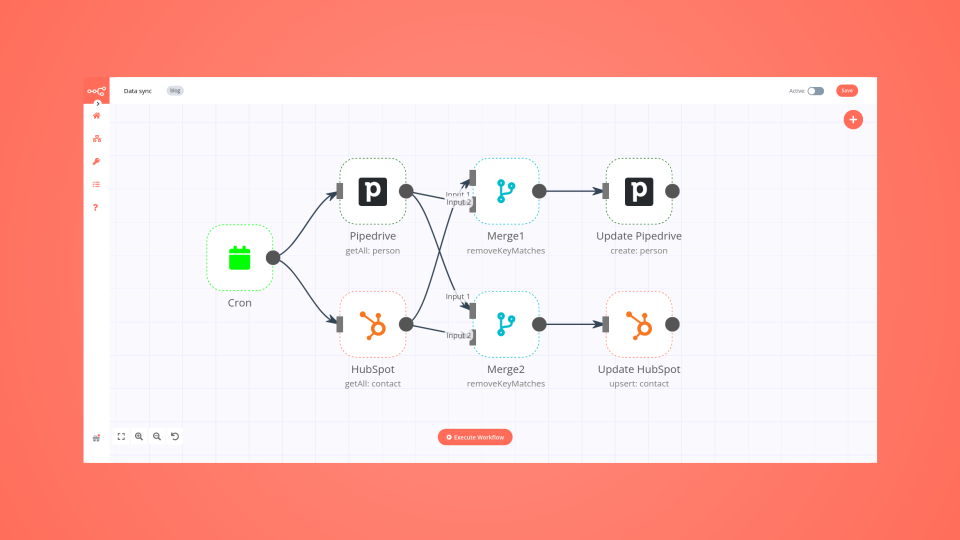
CRM Contact Sync with Mailchimp and Pipedrive This workflow keeps your contact records perfectly aligned between your CRM (e.g. HubSpot / Salesforce / Pipedrive) and Mailchimp. Whenever a contact is created or updated in one system, the automation propagates the change to the other platform, ensuring every email address, phone number and custom field stays in sync. Pre-conditions/Requirements Prerequisites n8n instance (self-hosted or cloud) Community nodes: Pipedrive, Mailchimp A dedicated service account in each platform with permission to read & write contacts Basic understanding of how webhooks work (for CRM → n8n triggers) Required Credentials Pipedrive API Token – Used for creating, updating and searching contacts in Pipedrive Mailchimp API Key – Grants access to lists/audiences and contact operations CRM Webhook Secret (optional) – If your CRM supports signing webhook payloads Specific Setup Requirements | Environment Variable | Description | Example | |----------------------|--------------------------------------|---------------------------------| | PIPEDRIVE_API_KEY | Stored in n8n credential manager | 123abc456def | | MAILCHIMP_API_KEY | Stored in n8n credential manager | us-1:abcd1234efgh5678 | | MAILCHIMP_DC | Mailchimp Datacenter (sub-domain) | us-1 | | CRM_WEBHOOK_URL | Generated by the Webhook node | https://n8n.myserver/webhook/... | How it works This workflow keeps your contact records perfectly aligned between your CRM (e.g. HubSpot / Salesforce / Pipedrive) and Mailchimp. Whenever a contact is created or updated in one system, the automation propagates the change to the other platform, ensuring every email address, phone number and custom field stays in sync. Key Steps: Inbound Webhook: Receives contact-change events from the CRM. Split in Batches: Processes contacts in chunks to stay within API rate limits. Mailchimp Upsert: Adds or updates each contact in the specified Mailchimp audience. Pipedrive Upsert: Mirrors the same change in Pipedrive (or vice-versa). Merge & IF nodes: Decide whether to create or update a contact by checking existence. Error Trigger: Captures any API failures and posts them to the configured alert channel. Set up steps Setup Time: 15-25 minutes Create credentials • In n8n, add new credentials for Pipedrive and Mailchimp using your API keys. • Name them clearly (e.g. “Pipedrive Main”, “Mailchimp Main”). Import the workflow • Download or paste the JSON template into n8n. • Save the workflow. Configure the Webhook node • Set HTTP Method to POST. • Copy the generated URL and register it as a webhook in your CRM’s contact-update events. Map CRM fields • Open the first Set node and match CRM field names (firstName, lastName, email, etc.) to the standard keys used later in the flow. Select Mailchimp Audience • In the Mailchimp node, choose the audience/list that should receive the contacts. Define Pipedrive Person Fields • If you have custom fields, add them in the Pipedrive node’s Additional Fields section. Enable the workflow • Turn the workflow from “Inactive” to “Active”. • Send a test update from the CRM to verify that contacts appear in both Mailchimp and Pipedrive. Node Descriptions Core Workflow Nodes: Webhook – Accepts contact-change payloads from the CRM. Set – Normalises field names to a common schema. SplitInBatches – Loops through contacts in controllable group sizes. HTTP Request – Generic calls (e.g. HubSpot/Salesforce look-ups when required). Pipedrive – Searches for existing persons; creates or updates accordingly. Mailchimp – Performs contact upsert into an audience. If – Branches logic on “contact exists?”. Merge – Re-assembles branch data back into a single execution line. Code – Small JS snippets for complex field transformations. Error Trigger – Listens for any node failure and routes it to alerts. StickyNote – Documentation hints inside the workflow. Data Flow: Webhook → Set (Normalise) → SplitInBatches SplitInBatches → Mailchimp (Get) → If (Exists?) → Mailchimp (Upsert) SplitInBatches → Pipedrive (Search) → If (Exists?) → Pipedrive (Upsert) Merge → End / Success Customization Examples Add a Tag to Mailchimp contacts // Place inside a Code node before the Mailchimp Upsert item.tags = ['Synced from CRM', 'High-Value']; return item; Apply a Deal Stage in Pipedrive // Pipedrive node → Additional Fields "deal": { "title": "New Lead from Mailchimp", "stage_id": 2 } Data Output Format The workflow outputs structured JSON data: { "id": 1472, "status": "updated", "email": "[email protected]", "source": "CRM", "synced": { "pipedrive": "success", "mailchimp": "success" }, "timestamp": "2024-04-27T10:15:00Z" } Troubleshooting Common Issues HTTP 401 Unauthorized – Verify that the API keys are still valid and have not been revoked. Webhook receives no data – Double-check that the CRM webhook URL matches exactly and that the event is enabled. Performance Tips Batch contacts in groups of 50-100 to respect Mailchimp & Pipedrive rate limits. Use Continue On Fail in non-critical nodes to prevent the entire run from stopping. Pro Tips: Map your CRM’s custom fields once in the Set node to avoid touching each downstream node. Use Merge+If pattern to keep “create vs update” logic tidy. Enable workflow execution logs only in development to reduce storage usage. *Community Template Disclaimer: This workflow is provided by the n8n community “as is”. n8n GmbH makes no warranties regarding its performance, security or compliance. Always review and test in a development environment before using it in production.*

Popular ways to use the Mailchimp and Pipedrive integration

Build your own Mailchimp and Pipedrive integration

Create custom Mailchimp and Pipedrive workflows by choosing triggers and actions. Nodes come with global operations and settings, as well as app-specific parameters that can be configured. You can also use the HTTP Request node to query data from any app or service with a REST API.

Mailchimp supported actions

Pipedrive supported actions

Mailchimp and Pipedrive integration details

Mailchimp

Mailchimp

Mailchimp is an all-in-one marketing, automation & email marketing platform. It helps you manage your mailing lists, send automated emails, increase engagement and track results. It allows for synchronization, integration, and optimizations with its AI tools.

Pipedrive

Pipedrive

Pipedrive is a sales-focused Customer Relationship Management tool that teams of all sizes love using. At the core of Pipedrive is pipeline management, and it features key sales functionalities: automations, email integration and a decent selection of partner integrations.

Supercharge your CRM

Need a more powerful integration with your CRM? n8n lets you go beyond standard integrations offered by popular CRMs!

Learn more

Automate lead management

Using too many marketing tools? n8n lets you orchestrate all your apps into one cohesive, automated workflow.

Learn more

FAQ about Mailchimp integrations

Looking to integrate Slack and VirusTotal in your company?

Trusted by teams building smarter workflows

Why

Why use n8n to integrate Mailchimp with Pipedrive

Handle branching, merging and iteration easily. Pause your workflow to wait for external events.

Re-run single steps to test changes in no time. And pin your data to avoid generating trigger events every time you execute.

Your data is displayed alongside your settings, making edge cases easy to track down.

Use 1000+ workflow templates available from our core team and our community.

Copy and paste, easily import and export workflows.

Simple enough to 
understand + sophisticated 
enough to ship