Back to Templates
See llms.txt for all machine-readable content.


Build a Better AI Chatbot for Your Zendesk Knowledge Portal
Simple setup, no vector database needed. Uses GraphRAG to enhance user's prompts and provide high-quality and relevant up-to-date responses from your Zendesk knowledge base.
Can be embedded on your Zendesk portal, also accesible via a URL. Can be customized and branded in your style.
See example at support.noduslabs.com or a screenshot below:
Also, compare it to the original Zendesk AI chatbot available at our other website https://infranodus.com — you will see that the quality of responses in this custom chatbot is much better than in the native Zendesk one, plus you save subscription because you won't need to activate their chat option, which is $25 per agent.
Workflow Overview
In this workflow, we use the n8n AI Agent Node with a custom prompt that:
- First consults an "expert" graph from the InfraNodus GraphRAG system using the official InfraNodus GraphRAG node that will extract a reasoning ontology and a general context about your product from the graph that you create manually or automatically as described on our support portal.
- The augmented user prompt is converted by AI agent node in a Zendesk search query that retrieves the most relevant content using their search API via n8n HTTP node.
- Both the results from the graph and the search results are combined and shown to the user
How it works
- Receives a request from a user via a webhook that connects to the custom n8n chat widget.
- The request goes to the AI Agent node from n8n with a custom prompt (provided in the workflow) that orchestrates the following procedure:
- Sends the request to the knowledge graph in your InfraNodus account using the official InfraNodus GraphRAG node that contains a reasoning ontology represented as a knowledge graph based on your Zendesk knowledge support portal. Read more on how to generate this ontology here.
- Based on the results from InfraNodus, it reformulates the original prompt to include the reasoning logic as well as provide a fuller context to the model.
- Sends the request to the Zendesk search API using the n8n custom HTTP node with an enhanced search query to retrieve high-quality results.
- Combines Zendesk search results with InfraNodus ontology to generate a final response to the user.
- Sends the response back to the webhook, which is then picked up by the n8n chat widget that is shown to the user wherever the widget is embedded (e.g. on your own support portal).
How to use
• Get an InfraNodus API key and add it into InfraNodus GraphRAG node.
• Edit the InfraNodus Graph node to provide the name of the graph that you will be using as ontology (you need to create it in InfraNodus first.
• Edit the AI Agent (Support Agent) prompt to modify our custom instructions for your particular use case (do not change it too much as it works quite well and tells the agent what it should do and in what sequence).
• Add the API key for your Zendesk account. In order to get it, go to your support portal Admin > Apps & Integrations > API Tokens. Usually it's located at https://noduslabs.zendesk.com/admin/apps-integrations/apis/api-tokens where instead of noduslabs you need to put the name of your support portal.
Note: the official n8n Zendesk node does not have an endpoint to search and extract articles from support portal, so we use the custom HTTP node, but you can still connect to it via the Zendesk API key you have installed in your n8n.
Support & Tutorials
If you wan to create your own reasoning ontology graphs, please, refer to this article on generating your own knowledge graph ontologies.
Specifically for this use case: Building ontology for your n8n AI chat bot.
You may also be interested to watch this video that explains the logic of this approach in detail:
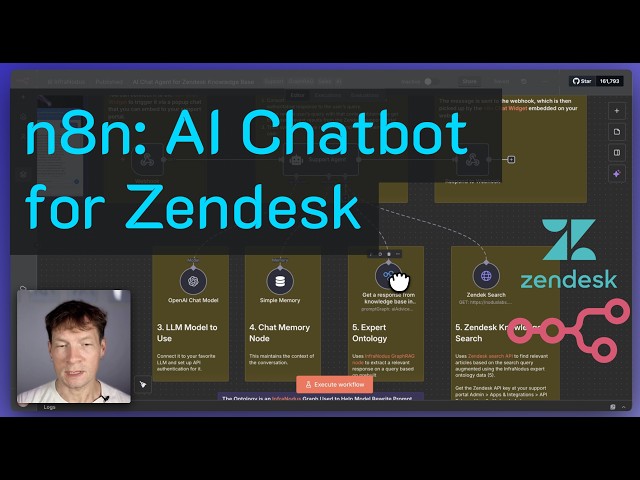
Our support article for this workflow with real-life example: Building an embeddable AI chatbot agent for your Zendesk knowledge portal.
To get support and help, contact us via support.noduslabs.com
Learn more about InfraNodus at www.infranodus.com