Back to integrations
Integrate Autype with 1000+ apps and services
Unlock the full potential of Autype and n8n’s automation platform by connecting centerbit’s capabilities with over 1,000 apps, data sources, services, and n8n’s built-in AI features.
Need something that’s not covered yet?
Use n8n’s pre-authenticated HTTP Request node to create new connections, giving you the flexibility to build powerful automations on any stack.

Created by
centerbit
Last update
11 hours ago
Autype integration
is built and maintained by our partners at centerbit and verified by n8n. That means it’s solid, safe, and ready to help you tap into some great capabilities.
About Autype
Autype is a powerful document rendering engine that generates pixel-perfect PDFs and DOCX files from JSON or Extended Markdown, not just static templates. Use dynamic variables, charts, math, and citations in your n8n workflows to automate reports, contracts, proposals, and more.
Related categories

Popular ways to use the Autype integration
Generate AI market research reports with Perplexity, Claude, Google Trends, and Autype
Auto-fill PDF forms with AI using Autype, OpenAI, and Google Drive
Generate styled PDF or DOCX business reports from Markdown with Autype
Bulk generate payment reminder PDFs from NocoDB with Autype
Merge Google Drive PDFs with dynamic cover pages and watermark using Autype
Generate documents from saved templates and variables using Autype
What can you do with Autype?
Create From JSON
Create a bulk render job with an array of variable sets
Create From File
Create a bulk render job by uploading a CSV, Excel, or JSON file
Get Status
Get the current status of a bulk render job
Download Output
Download the bulk render output as a ZIP file by job ID
Create Document
Create a new document in a project
Create Project
Create a new project in the organization (always PUBLIC)
Get Document
Get a document by ID including its latest content
Get Document Variables
Get the variable definitions for a document (useful for bulk rendering)
List Documents
List all documents for the organization
List Projects
List all projects for the organization
Add Watermark
Add a text watermark to all or specific pages of a PDF
Compress
Compress a PDF to reduce file size
Convert to Image
Convert PDF pages to images (PNG or JPEG)
Convert to PDF
Convert a DOCX or ODT file to PDF (or other formats). The input format is detected automatically from the uploaded file.
Fill Form
Fill form fields in a PDF with provided values
Get Form Fields
Extract form field names, types, and current values from a PDF. Returns result directly.
Get Job Status
Get the current status of a Document Tools job
Get Metadata
Extract metadata from a PDF (page count, title, author, etc.). Returns result directly.
Keep/Remove Pages
Keep or remove specific pages from a PDF
List Jobs
List Document Tools jobs for the organization
Merge PDFs
Merge 2–20 PDF files into a single PDF
Protect
Encrypt a PDF with password protection
Replace Placeholders
Replace placeholder tags in a DOCX or ODT document with provided values and convert to the desired output format
Rotate Pages
Rotate specific pages of a PDF by 90, 180, or 270 degrees
Split PDF
Split a PDF into multiple parts by page ranges
Unlock
Remove password protection from a PDF
Delete
Delete a Document Tools file from storage
Delete Temporary Image
Delete a temporary rendering image before it expires. These images are for Render from JSON / Render from Markdown only (not for Document Tools).
Download
Download a Document Tools file by ID (input or output files)
Get Details
Get metadata for a file uploaded for Document Tools
List
List all non-expired files uploaded for Document Tools
List Temporary Images
List all non-expired temporary rendering images. These images are for Render from JSON / Render from Markdown only (not for Document Tools).
Upload
Upload a file (PDF, DOCX, ODT, PNG, JPEG, max 50MB) for use with Document Tools operations. Files expire after 60 minutes.
Upload Temporary Image
Upload a temporary image (JPEG, PNG, WebP, max 25MB) for use in Render from JSON or Render from Markdown. Expires after 24h. Not for Document Tools — use Upload instead.
Download Output
Download the rendered document file by job ID
Get Job Status
Get the current status of a render job
List Jobs
List all render jobs for the organization
Render From JSON
Submit document JSON for rendering to PDF, DOCX, or ODT
Render From Markdown
Submit Extended Markdown content for rendering
Render Persistent Document
Render a pre-existing document from your workspace by ID
Validate JSON
Validate a document JSON without rendering (no credits charged)
Validate Markdown
Validate Extended Markdown content without rendering (no credits charged)
How to install Autype and use it in your n8n workflows
Verified nodes need a quick setup by an instance owner first, but after that, everyone on the instance can start using them in their workflows. Learn more here.
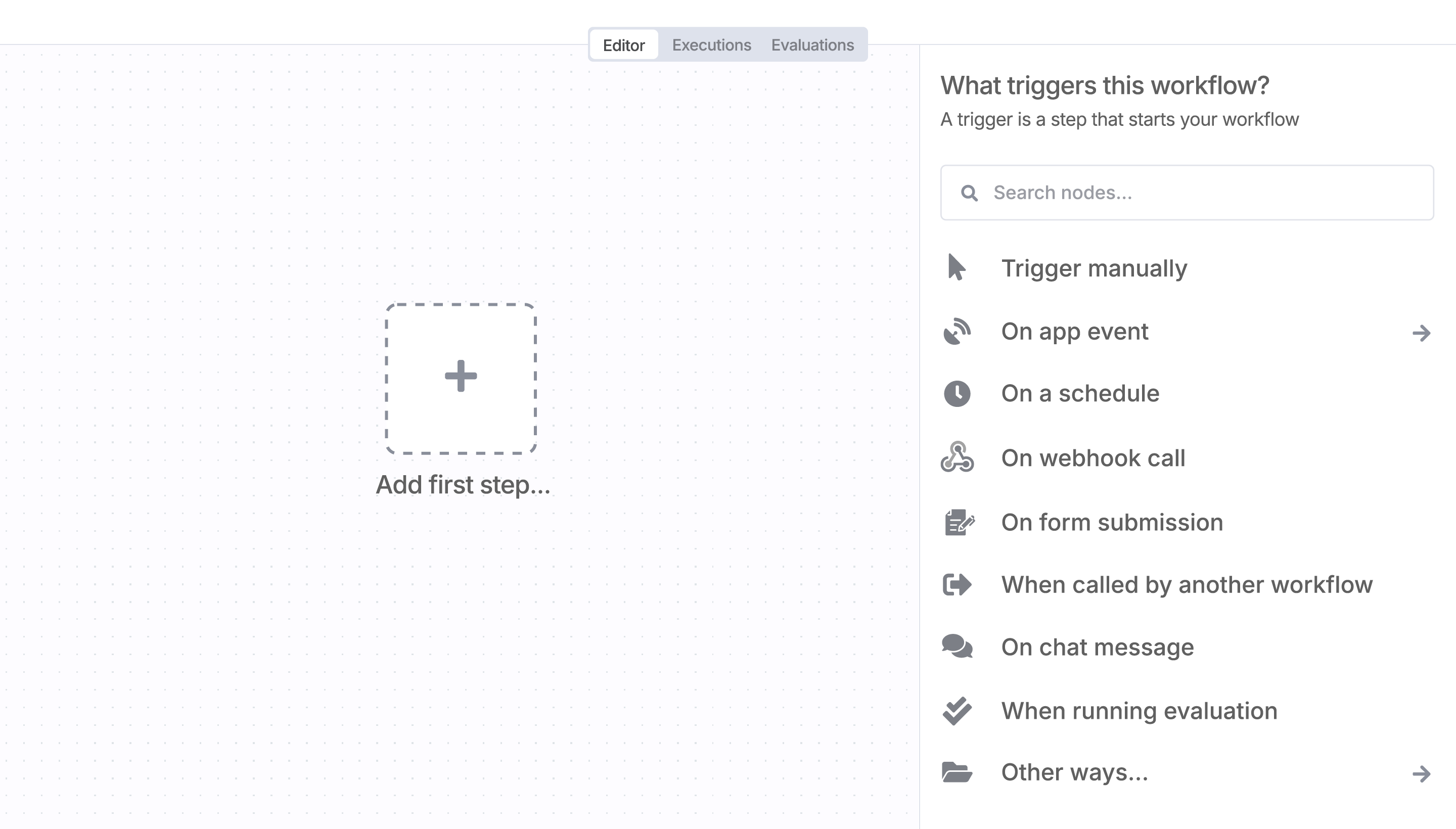
Sign in to n8n, open the editor, and click + in the top right to open the Nodes panel
Resources for Autype
The world's most popular workflow automation platform for technical teams including