See llms.txt for all machine-readable content.
Integrate VH3 AI with 2,000+ apps and services
Unlock the full potential of VH3 AI and n8n’s automation platform by connecting VH3 AI’s capabilities with over 2,000 apps, data sources, services, and n8n’s built-in AI features.
Need something that’s not covered yet?
Use n8n’s pre-authenticated HTTP Request node to create new connections, giving you the flexibility to build powerful automations on any stack.

- Created by
- VH3 AI
- Last update
- 11 days ago
VH3 AI integration
is built and maintained by our partners at VH3 AI and verified by n8n. That means it’s solid, safe, and ready to help you tap into some great capabilities.
About VH3 AI
Connect n8n to VH3 AI and FMS systems like BigChange for complete field service automation. Manage jobs, contacts, engineers, vehicles, invoices, and quotes and layer on AI-powered briefings, smart reports, email triage, proactive sentinels, and conversational lookup. AI agent-ready out of the box.
Related categories
What can you do with VH3 AI?
| Generate Account Report | Generate a structured monthly account report aggregating jobs across the full parent–child contact hierarchy |
|---|
| List Attachments for an Entity | This service lists information about any attachments to the requested entity |
|---|---|
| Retrieve an Attachment by ID | This service retrieves an attachment using an AttachmentId. This can be retrieved using ListAttachments. |
| Generate Briefing | Generate a structured pre-visit briefing and AI call script for a field service engineer heading to a job |
|---|
| Add Case Item | Link a job, customer, site, engineer, or other record to a case |
|---|---|
| Add Comment | Add a comment to a case activity timeline |
| Add Participant | Add a user as a participant. Roles are owner, investigator, reviewer, observer, and contributor. |
| Assign Team | Assign or clear the Case Assigned Team. Pass Team ID 0 to clear. |
| Create Case | Create a new case in draft with title, type, and optional priority, tags, and metadata |
| Delete Case | Archive a case for audit. The record, linked items, and activity stay. Does not permanently delete or restore. |
| Get Case | Get a single case with participants, items, and latest activity |
| List Activity | Get the activity timeline for a case, paginated with newest first |
| List Case Items | List all items linked to a case, optionally filtered by item type |
| List Cases | List cases for a company with filtering and pagination. Sorting is server-side. Omitted Scope, Sort, and Order use the FSI API defaults. |
| List Cases for Item | Reverse lookup — find all cases that reference a specific job, customer, site, or other item |
| Remove Case Item | Unlink an item from a case |
| Remove Participant | Remove a participant from a case |
| Search Cases | Full-text search across case titles and descriptions with optional filters |
| Transition Case | Transition a case to an allowed next status. Invalid transitions fail with the permitted-next list. |
| Update Case | Update selected case fields. Unselected fields are preserved. Adding an empty clearable field clears the current value. Actor ID is a Connect user ID; omit or 0 uses the API-key owner. |
| Chat | Send a message to the Connie AI assistant |
|---|---|
| Generate Summary | Generate a Connie AI summary for a contact |
| Get Session Messages | Get messages for a specific chat session |
| List Sessions | List Connie chat sessions for a user or contact |
| Search History | Search across Connie conversation history |
| Create Contact | Create a new customer or site. Requires name, group ID, and lat/lng (lat/lng can be 0 if unknown but must be supplied). Optional address fields and parent contact ID for child sites. |
|---|---|
| Create Contact Group | Create a new contact group (folder/category for customers and sites). Requires only a name. |
| Edit Contact | Update an existing contact (customer or site). Name, group, and lat/lng must be re-supplied even if unchanged. Address fields are optional. |
| Get Contact | Get one contact by numeric ID. Returns address, location, custom fields, group, status, parent linkage. Use this when an agent asks "what address is customer X at?" or "tell me about site Y". |
| Get Contact Group | Get one contact group by ID. Use to look up a group's name/metadata. |
| List Contact Groups | List all contact groups (the categories used to organise customers and sites). Useful for mapping group IDs to names. |
| List Contacts | Primary search for customers and sites. Filter by name (starts-with), reference, IDs, parent ID, group ID, or status (normal / contactOnStop / creditLimitOnStop). Supports paging. Use this whenever an agent needs to find a contact by name or list customers/sites. |
| Stop Contact | Block a customer or site from new jobs/invoices. Choose contactOnStop (general hold) or creditLimitOnStop (account is over credit). Optional reason. Pick whether to cascade to child sites via Applies To. |
| Unstop Contact | Lift a stop on a customer or site so new jobs/invoices can be raised again. Pick whether to cascade to children via Applies To. |
| Update Contact Group | Rename an existing contact group. Provide the group ID and the new name. |
| Get Enriched Contact | Get a single contact with an operational snapshot and optional customer summary |
|---|---|
| List Contact Feed | Paginated contact/customer feed with filters for search, group, reference, and account status |
| Batch Classify Emails | Run up to 50 emails through the triage pipeline in a single call; portal/pre-filter hits are instant and only novel emails consume LLM tokens |
|---|---|
| Classify Email | Classify an incoming email using the AI triage pipeline |
| Ingest General Email | Run a general email through the full ingest pipeline via the /ingest/email/triage endpoint |
| Ingest Portal Email | Extract structured job data from an FM portal email via the /ingest/email/portal endpoint and resolve entities |
| List Triage Categories | Return the tenant's active triage categories with priority, destination, and prompt rules from the taxonomy database |
| List Triage Rules | Return the tenant's active email routing rules with full condition/action definitions; optionally filter by classification phase |
| Generate Profiles | Generate or regenerate intelligence profiles for a tenant |
|---|---|
| Get Profile | Get intelligence profile for a specific job type |
| List Profiles | List all intelligence profiles for a tenant |
| Run Investigation | Multi-step hybrid investigation across vector and graph data |
|---|
| Cancel Invoice | Cancel an invoice by ID. Use only for invoices that should not be paid (e.g. raised in error). Cancellation is permanent. |
|---|---|
| Create Invoice | Raise a new invoice. Requires currencyCode (ISO 4217, e.g. GBP, USD, EUR). Link to a job, job group, OR contact via additional fields. Optionally set invoice date (createdAt), notes, bank account, department, nominal code. After creation, add lines via Create Invoice Line Item, then Mark Invoice Sent. |
| Create Invoice Line Item | Add a billable line to an invoice. Requires invoiceId, contactId, description, quantity, unitCost, unitSellingPrice, taxId, nominalCodeId, departmentCodeId. Get tax/nominal/department code IDs from List Reference Data. |
| Delete Invoice Line Item | Remove a line item from an invoice (only valid before the invoice is sent/paid). Needs both invoiceId and lineItemId. |
| Edit Invoice | Update notes on an existing invoice (clientNotes shown to customer; internalNotes private). Cannot change currency, totals, or links — recreate for those changes. |
| Get Invoice | Get a single invoice by numeric ID — totals, status, customer, links, tax breakdown. Use List Invoice Line Items for the lines. |
| Get Invoice Line Item | Get one line on an invoice (description, qty, unit cost/price, tax, nominal, department). Needs both invoiceId and lineItemId. |
| List Invoice Line Items | List every line on an invoice (what was billed). Use to compute totals, audit a bill, or extract narrative for a customer email. |
| List Invoices | List invoices. BigChange requires at least one filter or a date range — if you supply none, the node defaults to the last 12 months. Filter by job ID(s), contact ID(s), reference, or createdAt window. Use to find recent/unpaid invoices, customer history, etc. |
| Mark Invoice Paid | Record payment received on an invoice. Optional paidAt timestamp (UTC, defaults to now). Use after manual payment reconciliation. |
| Mark Invoice Sent | Mark an invoice as issued/sent to the customer. Required before payment can be recorded. No fields beyond invoiceId. |
| Cancel Job | Cancel a field service job. Requires the numeric job ID. Optional reason text. Use only when the job will not happen at all (otherwise prefer Set Job Result with completedWithIssues). |
|---|---|
| Create Job | Create a new field service job. Requires a job type ID (from List Job Types) and a contact (customer/site) ID (from List Contacts). Returns the new job ID. Does not schedule it — call Schedule Job afterwards. |
| Create Job (Dynamic Fields) | Create a job where custom fields are supplied as a pre-built JSON array from a previous node (e.g. a Code node). Useful for automated pipelines where custom field values are resolved dynamically at runtime rather than configured manually. |
| Create Job Constraint | Add a scheduling rule to a job (e.g. must start before X, requires engineer Y or skill Z). Time-based types need constraintAt; resource/skill types need entityId. Used by the BigChange scheduler. |
| Create Job Stock | Plan or record stock/parts movement on a job (brought, used, taken back). Requires job ID; supply stockDetailsId or stockItemId plus an action and quantity. |
| Delete Job Constraint | Remove a scheduling constraint by its constraint ID (get it first via List Job Constraints) |
| Edit Job | Update fields on an existing job (description, reference, planned duration, person, order number, custom fields, office notes, isActioned, isFinanciallyComplete). Does not change schedule or status — use Schedule Job / Start Job / Set Job Result for those. |
| Get Job | Get the FULL enriched view of one job (status history, assigned engineer, site address, custom fields, completed worksheet answers, attachments). Heavier payload — use this when an agent needs to summarise/answer questions about a specific job. For a quick lookup, use Get Job by ID instead. |
| Get Job by ID | Lightweight single-job lookup by numeric ID via the proxy. Optionally include worksheets. Faster and cheaper than Get Job — prefer this when you only need core job fields. Set Simplify=true to strip the deep BigChange envelope. |
| List Job Constraints | List all scheduling constraints currently attached to a job (pre-existing rules the scheduler must respect) |
| List Job Status History | Get the full audit trail of status transitions for a job (new → scheduled → started → completedOk, etc.) with timestamps and actors. Use to debug "why is this job in this state?" or build a timeline. |
| List Job Stock | List every stock/parts line attached to a job — what was planned, brought, used, or taken back |
| List Jobs | Primary search for jobs. REQUIRES a created-from / created-to UTC window. Filter by status (e.g. completedOk, scheduled, started), job type IDs, contact (customer/site) IDs, resource (engineer) IDs, vehicle IDs, or reference. Returns paginated job records. Default returnAll=false. Set Simplify=true to strip envelopes. |
| Schedule Job | Assign an engineer (resource), vehicle, and/or planned start time to a job. Use after Create Job or to reassign. plannedStartAt is UTC ISO-8601. |
| Set Job Result | Close a job by writing its completion outcome. Status MUST be completedOk or completedWithIssues. Optional result text and an override timestamp. After this call the job is treated as done. |
| Start Job | Mark a job as started (engineer en-route/on-site). Optional comment (max 250 chars) and override timestamp. Cannot start an already-completed or cancelled job. |
| Aggregate Jobs | Compute job metrics with grouping, time-axis control, and period-over-period comparison |
|---|---|
| Get Enriched Job | Get a single job with worksheets, AI enrichment (vertical, sentiment, key phrases), and timing data |
| List Account Job Feed | Paginated job feed scoped to a parent account and all its children. Pass any contact ID in the hierarchy — jobs for the entire account tree are returned. |
| List Job Feed | Paginated list of AI-enriched jobs with filters for status, result, engineer, customer, job type, and category |
| Create Job Group | Create a job group (a folder/project that links multiple jobs together, e.g. a multi-day install). Requires contactId, isShownOnDevice, areJobsLinked, plannedStartOption, plannedEndOption. Optional title, planned start/end (UTC), category, order number. |
|---|---|
| Edit Job Group | Update fields on an existing job group (title, order number, planned start/end, category) |
| Get Job Group | Get one job group by numeric ID — title, customer, planned dates, status, member jobs |
| List Job Group Status History | Audit trail of status changes on a job group. Use to debug why a multi-job project is stuck. |
| List Job Groups | List job groups (multi-job projects). Sort by created/title. Use for project pipeline views. |
| Mark Job Group Complete | Force every job in the group into a "completed" state. Use when an entire multi-job project is done in one go (not common — usually each job is closed individually). |
| Mark Job Group Financially Complete | Lock the job group for finance — signals invoicing is finished. After this, no further invoices can be raised against the group. |
| Get Job Type | Get one job type definition by numeric ID — name, default duration, custom field schema, configuration. Use to discover what custom fields a job of this type accepts. |
|---|---|
| List Job Types | List every job type/template (e.g. installation, repair, maintenance, callout). Required reference data before Create Job — use this to find the right typeId. |
| Create Note | Attach a note/task/comment to an entity. Requires entityType (job, contact, person, etc.), entityId, typeId (from List Note Types), and a subject. Optional description, dueAt (UTC), status, owner. Use for follow-ups, customer comms log, internal flags. |
|---|---|
| Create Progress Update | Append a progress comment to an existing note (does not modify the original). Use for status updates on tasks/follow-ups. |
| Edit Note | Update an existing note. All core fields (entityType, entityId, typeId, subject) must be re-supplied. Use to change status, due date, ownership, or content. |
| Get Note | Get a single note by numeric ID — entity link, subject, description, status, owner, due date |
| Get Note Type | Get one note type by ID. Use to map a note type ID to its display name and configuration. |
| List Note Types | List the available note types (categories). Required reference data before creating notes — pick the right typeId from here. |
| List Notes | List notes. Filter by entityType + entityId (e.g. all notes on job 123), typeId(s), status, contactId, sort. Use to surface follow-ups, callback queues, or audit trails. |
| Create Person | Create an individual contact at a customer/site (e.g. site manager, decision maker). Requires contactId (the parent customer/site), forename, surname. Optional title, email, mobile, landline, position, department, isOptedOut. |
|---|---|
| Edit Person | Update an existing person. forename and surname must be re-supplied. Use to update contact details, role, marketing opt-out status. |
| Get Person | Get one person by their UUID (string) — name, role, contact details, parent contact, opt-out status |
| List Consent History | Audit trail of marketing-consent changes for a specific person (GDPR/CASL compliance). Requires personId (UUID). |
| List Persons | List individual people. Filter by contactId(s) (find people at a customer/site), surname (starts-with), or email. Use to find the right person to contact at a customer. |
| Get Pulse | Get a cached business-health dashboard snapshot with pipeline, performance, workforce, and asset metrics |
|---|
| Create Purchase Order | Create a new purchase order. supplierId is required. Optionally link to a job, job group, or contact via additional fields. |
|---|---|
| Create Purchase Order Line Item | Add a line to a purchase order. Requires purchaseOrderId, contactId, description, quantity, unitCost, unitSellingPrice, taxId, nominalCodeId, departmentCodeId. |
| Delete Purchase Order Line Item | Remove a line from a purchase order. Needs both purchaseOrderId and lineItemId. |
| Edit Purchase Order | Update a purchase order (PATCH semantics — omit a field to keep its existing value) |
| Edit Purchase Order Line Item | Update an existing line on a purchase order (PATCH semantics — omit a field to keep its existing value) |
| Get Purchase Order | Get one purchase order by ID — supplier, status, totals, links, custom fields. Use List Purchase Order Line Items for the lines. |
| Get Purchase Order Line Item | Get one line on a purchase order. Needs both purchaseOrderId and lineItemId. |
| Get Purchase Order Series | Get a single purchase order series (numbering sequence) by ID |
| List Purchase Order Line Items | List every line on a purchase order. Use to compute totals or audit ordered goods. |
| List Purchase Order Series | List configured purchase order series (numbering sequences) — reference data |
| List Purchase Orders | List purchase orders. BigChange requires at least one filter (ID/jobId/jobGroupId/contactId/reference) or a createdAt window — if none supplied, the node defaults to the last 12 months. Note: date-only filtering may return a BC 500 on some tenants — combine with ID[]/jobId[]/contactId[] when possible. |
| Create Quote | Raise a new sales quote. Requires currencyCode (ISO 4217). Link to a job, job group, or contact via additional fields. Optional daysValidFor, custom fields, delivery site, and notes (clientNotes shown to customer; internalNotes private). Add lines via Create Quote Line Item, then Mark Quote Sent. |
|---|---|
| Create Quote Line Item | Add a priced line to a quote. Requires quoteId, contactId, description, quantity, unitCost, unitSellingPrice, taxId, nominalCodeId, departmentCodeId. |
| Delete Quote Line Item | Remove a line from a quote. Needs both quoteId and lineItemId. Only valid before the quote is accepted. |
| Edit Quote | Update notes, daysValidFor, delivery site, nominal/department codes, or custom fields on an existing quote. Cannot change currency or convert to invoice. |
| Edit Quote Line Item | Update an existing line on a quote. All pricing fields (qty, unitCost, unitSellingPrice, taxId, nominalCodeId, departmentCodeId) and description must be supplied. |
| Get Quote | Get one quote by ID — totals, status, customer, validity, custom fields. Use List Quote Line Items for the priced lines. |
| Get Quote Line Item | Get one priced line on a quote (description, qty, unit cost/price, tax, nominal, department). Needs both quoteId and lineItemId. |
| List Quote Line Items | List every priced line on a quote. Use to compute totals, generate a customer-facing breakdown, or audit pricing. |
| List Quotes | List quotes. BigChange requires at least one filter (ID/jobId/jobGroupId/contactId/reference) or a createdAt window — if none supplied, the node defaults to the last 12 months. Use for pipeline/conversion analysis or finding a customer's outstanding quote. |
| Mark Quote Accepted | Customer accepted the quote — locks pricing and unblocks job/invoice creation against it |
| Mark Quote Rejected | Customer rejected the quote. Closes the quote out of the active pipeline. |
| Mark Quote Sent | Mark a quote as issued/sent to the customer. Optional sentAt timestamp (UTC, defaults to now). |
| Create Document | Persist a VH3-owned Quote Document after a Quote Run |
|---|---|
| Get Document | Get one VH3-owned Quote Document by ID |
| Get Many Parts | Hydrate Parts Catalog rows by catalog ID for quote-time pricing |
| Get Revision | Get one immutable Quote Document revision |
| List Documents | List VH3-owned Quote Documents, optionally filtered by job reference or status |
| List Parts Catalog | Page Parts Catalog rows for the tenant, optionally filtered by vendor |
| List Rate Cards | List Quote Run rate cards, optionally filtered by contact |
| List Rate Defaults | List quoting rate-default pointers for the tenant |
| List Revisions | List immutable revisions for one Quote Document |
| Update Commercial | Patch structured SALMA commercial sections onto an existing Quote Document |
| Update Lifecycle | Patch Quote Document version, status, or accepted revision pointer |
| Update Revision Status | Update a Quote Document revision status (for example superseded or accepted) |
| Get Quote | Get a single Quotient quotation by UUID or quote number |
|---|---|
| List Quotes | Paginated Quotient quotations with date-window and status filters |
| Get Department Code | Get one department code by ID — code and description. Use to map a departmentCodeId on a quote/invoice line to a human-readable label. |
|---|---|
| Get Nominal Code | Get one nominal (accounting) code by ID — code and description. Use to map a nominalCodeId on a quote/invoice line to its accounting label. |
| List Department Codes | List department codes (cost-centre codes used on quotes and invoices). Required reference data before Create Quote Line Item / Create Invoice Line Item. |
| List Nominal Codes | List nominal (accounting) codes used on quotes and invoices. Required reference data before Create Quote Line Item / Create Invoice Line Item. |
| Generate Report | Generate an AI-powered operational report (daily or weekly) with optional narrative summary |
|---|---|
| List Report Sections | List all available report types and their sections |
| Driver Infringement Events for a Date Range | Returns the same dataset used by the Driver Infringement Report, allowing you to extract each driving infringement event |
|---|---|
| Driver Performance Data for a Date Range | This webservice returns the same dataset used by the Driver Performance Report allowing you to extract each data around how your resources drive |
| Get a List of Reports | BigChange Web Services ReportList: get a list of reports |
| List Document Templates | This service returns a detailed list of the report templates available in BigChange |
| Vehicle Infringement Events | BigChange Web Services ReportVehicleInfringement: vehicle infringement events |
| Vehicle Performance Data | This service allows you to view how your assets drive. This works like the 'Driver Behaviour' report to relay the same information, but for assets instead of resources. |
| Create Resource | Create a new engineer/technician/operative. Requires name and groupId (team). Optional email, mobile, reference. Returns the new resource ID for use in Schedule Job. |
|---|---|
| Get Resource | Get one engineer by numeric ID — name, group/team, contact details, reference. Use to look up an engineer's profile. |
| Get Resource Group | Get one resource group (team) by ID. Use to map a group ID to its name. |
| List Resource Groups | List the teams that engineers belong to (e.g. "North region", "Senior techs"). Use as a lookup before listing/creating resources. |
| List Resources | List every engineer/technician/operative on the books. Use whenever an agent needs to find engineers, map names to IDs, or pick someone to assign a job to. |
| Update Resource | Update fields on an existing engineer record (name, group/team, email, mobile, reference). Only supplied fields are changed. |
| Create Sales Opportunity Line Item | Add a priced line to a sales opportunity. Requires salesOpportunityId, contactId, description, quantity, unitCost, unitSellingPrice, taxId, nominalCodeId, departmentCodeId. |
|---|---|
| Delete Sales Opportunity Line Item | Remove a line from a sales opportunity. Needs both salesOpportunityId and lineItemId. |
| Edit Sales Opportunity | Update a sales opportunity (PATCH semantics — omit a field to keep its existing value) |
| Edit Sales Opportunity Line Item | Update an existing line on a sales opportunity (PATCH semantics — omit a field to keep its existing value) |
| Get Sales Opportunity | Get one sales opportunity by ID — status, stage, probability, owner, contact, totals, custom fields. Use List Sales Opportunity Line Items for the priced lines. |
| Get Sales Opportunity Line Item | Get one priced line on a sales opportunity. Needs both salesOpportunityId and lineItemId. |
| List Probabilities | List configured sales opportunity probabilities (reference data — e.g. 25%, 50%, 75%) |
| List Sales Opportunities | List sales opportunities. BigChange requires at least one filter (ID/status/contactId/ownerId/reference) or a date window (createdAt or dueDate) — if none supplied, the node defaults to the last 12 months. |
| List Sales Opportunity Line Items | List every priced line on a sales opportunity. Use to compute weighted/forecast totals or audit pricing. |
| List Stages | List configured sales opportunity pipeline stages (reference data — e.g. Qualified, Proposal, Negotiation, Closed Won) |
| Generate Estimate | Run a Quote Run estimate for a job and send it to the supplied recipients |
|---|
| Autocomplete | Quick fuzzy search across customers, engineers, jobs, persons, and sites |
|---|---|
| Get Summary By Contact | Retrieve all stored CustomerSummary sections for a single contact in one call |
| Search Intake | Search intake descriptions with enriched job context from the knowledge graph |
| Search Intake (Basic) | Search intake descriptions without graph enrichment |
| Search Outcomes | Search job outcome and diagnostic summaries |
| Search Outcomes (Enriched) | Search job outcome summaries with Neo4j graph enrichment and optional date, status, and result filters |
| Search Summary Sections | Semantic hybrid search across CustomerSummary knowledge base sections for one or all customers |
| Get Latest Results | Retrieve the cached results from the most recent sentinel run for your tenant |
|---|---|
| List Sentinel Registry | List all available sentinel definitions with their thresholds and recommended schedules |
| Run Sentinels | Run sentinel checks and return only triggered alerts |
| Create Stock Details | Create a new stock product (SKU/template). Requires model and productCategoryId. Optional make, stockCode, batchNumber, isConsumable. This is the catalogue entry, NOT a physical unit — use Create Stock Item for those. |
|---|---|
| Create Stock Item | Create a physical stock unit (instance of a product). Requires stockDetailsId, model, productCategoryId. Optional serial number, condition, location contact, quantity. Use to register newly received inventory. |
| Get Product Category | Get one product category by numeric ID. Use to map a category ID to a name when displaying stock. |
| Get Stock Details | Get one stock product definition by stockDetailsId — model, make, stock code, category, suppliers reference |
| Get Stock Item | Get one physical stock unit by stockItemId — serial number, condition, current location, quantity |
| Get Stock Supplier | Get one supplier link for a stock product. Needs both stockDetailsId and stockSupplierId. |
| List Product Categories | List stock product categories (the top-level taxonomy of inventory). Filter by name (starts-with). |
| List Stock Details | List stock product definitions. Filter by productCategoryId(s), stockCode(s), or isConsumable. Use to browse the SKU catalogue. |
| List Stock Items | List physical stock units. Filter by stockDetailsId(s), serialNumber, or current locationContactId. Use to find what physical units exist of a given product or what's currently at a location. |
| List Stock Movements | List stock movement history (pickups/drop-offs). Filter by date ranges (pickUpAtFrom/To, dropOffAtFrom/To), jobId, stockDetailsId, stockItemId, vehicleId, dropOffContactId, dropOffVehicleId. Use for inventory audits and "where did this part go?" queries. |
| List Stock Suppliers | List suppliers linked to a specific stock product. Requires stockDetailsId. |
| Update Stock Details | Update fields on an existing stock product definition (model, category, make, stockCode, batchNumber, isConsumable) |
| Update Stock Item | Update fields on a physical stock unit (serial number, make, notes, quantity, location contact, condition) |
| Add Entity | Link a job, customer, site, engineer, or other record to a team |
|---|---|
| Add Member | Add a user to a team with a specified role |
| Create Team | Create a team with the tenant API key. Name required; optional purpose, description, and metadata. Connect UI edit of an existing team still requires team-lead or manager. |
| Get Team | Get a single team with its members and entity links |
| List Entities | List records linked to a team, optionally filtered by entity type |
| List Members | List all members of a team |
| List Teams | List teams for the company. Optional purpose and Search filters are live tenant-key query params. |
| List Teams for Entity | Reverse lookup — find all teams that include a specific job, customer, site, or other entity |
| Remove Entity | Remove a linked entity from a team |
| Remove Member | Remove a membership record from a team |
| Search Teams | Full-text search across team names and descriptions. Live tenant-key operation, not Connect-UI-only. |
| Update Team | Update team fields — only provided fields are changed |
| Get Journey Data for a Date Range | Retrieve a list of journeys within a specified date range |
|---|---|
| Get the Last Known Position of Assets | Retrieves the latest known position of resources and mobile assets |
| Last Known Odometer Readings | This method does not return positional information |
| Last Known Position and Odometer | This service returns details of Assets last known position and odometer |
| Delete User | Soft-delete (archive) a user from the company |
|---|---|
| Invite User | Send an email invitation to join the company |
| List Invites | Get all pending (unaccepted) invitations for the company |
| List User Teams | Get all teams for a user with their role and default-team flag |
| List Users | Get all active users for the company |
| Update User Role | Change the role assigned to a user |
| Create Vehicle | Add a new vehicle to the fleet. Requires groupId, vehicleType (e.g. van, car, truck), registration. Optional make, model, registrationYear, reference, fixedResourceId (driver). |
|---|---|
| Get Vehicle | Get one vehicle by numeric ID — registration, make, model, year, group, fixed driver. Use to look up a vehicle from a job. |
| List Vehicles | List all fleet vehicles. Use as a lookup before scheduling jobs to a vehicle, or to find the registration/make of an asset. |
| Update Vehicle | Update fields on a vehicle (group, type, registration, make, model, year, reference, fixed driver). Only supplied fields change. |
| Get Forecast | Get a weather forecast for a latitude/longitude |
|---|---|
| Get Historical | Get historical weather data for a latitude/longitude |
| Get Weather for Job | Get weather data for a specific job by ID |
| Get Weather for Site | Get weather data for a specific site by site key |
| Get Worksheet | Get one worksheet form template (the schema/blueprint) by numeric ID — title, group, version metadata. For the questions inside it, use Get Worksheet Questions. |
|---|---|
| Get Worksheet Questions | List the questions/fields defined inside a worksheet template (text, multiple choice, photo, signature). Use to map a question ID to its label when interpreting answers. |
| List Worksheet Answers | Get completed worksheet submissions for one or more jobs — answers, photos, signatures, parts captured. Requires a comma-separated list of job IDs. Use when an agent needs to summarise what an engineer did or extract specific captured values. |
| List Worksheet Definitions | List every worksheet form template (the blueprints engineers fill in on the mobile app). Use to discover available worksheets or map worksheet IDs to titles. |
| Get Worksheet Group | Get one worksheet group (folder) by numeric ID. Use to map a group ID to its name. |
|---|---|
| List Worksheet Groups | List the folders that organise worksheet templates. Use as a lookup before browsing worksheet definitions. |
How to install VH3 AI and use it in your n8n workflows
Verified nodes need a quick setup by an instance owner first, but after that, everyone on the instance can start using them in their workflows. Learn more here.
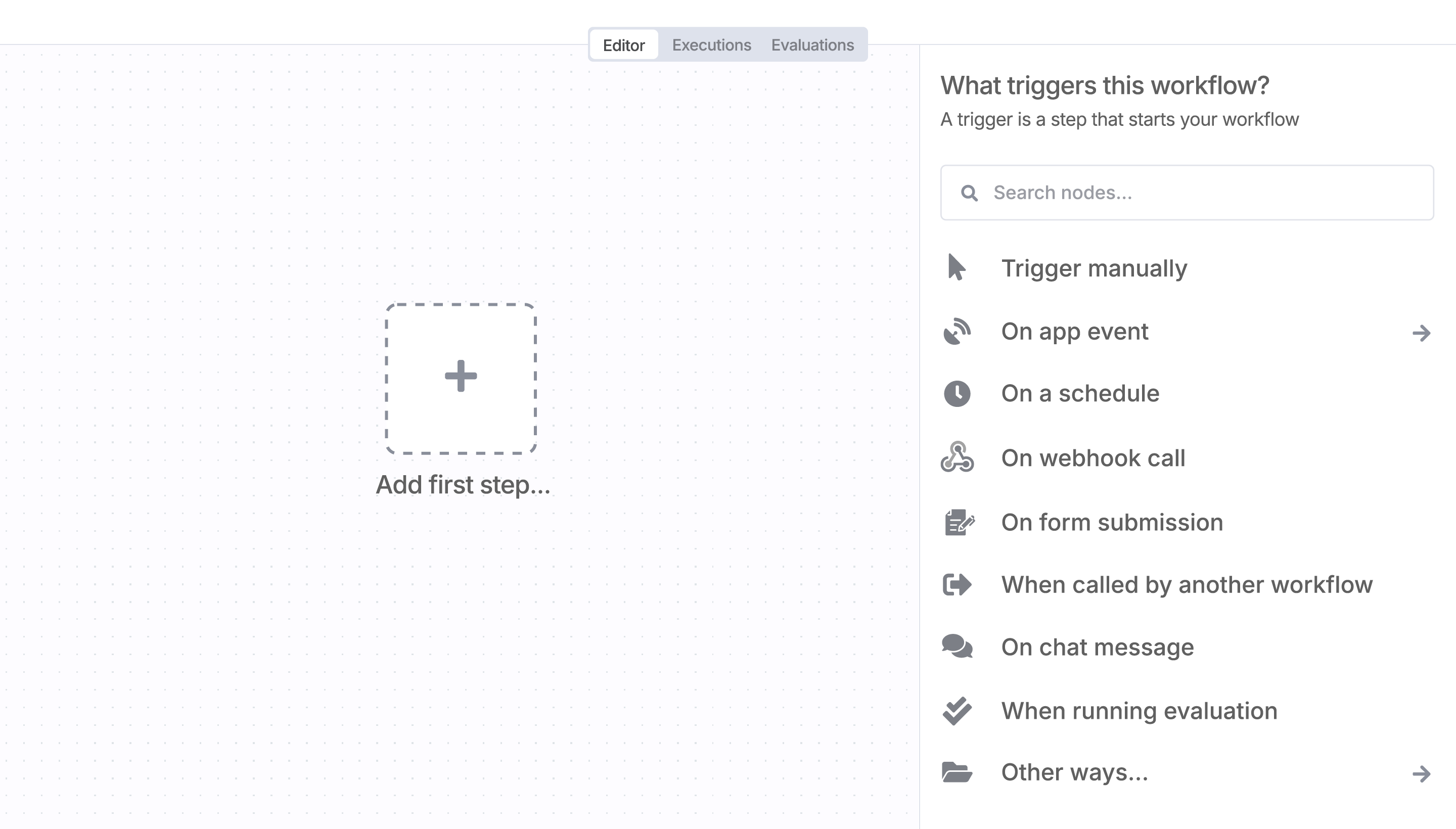
Sign in to n8n, open the editor, and click + in the top right to open the Nodes panel
Search for VH3 AI using the search bar. Look for the version marked by a badge  . Then, select install.
Once VH3 AI is installed, just drag, drop, and connect it like any other node in a workflow.
Resources for VH3 AI
Save engineering resources
Reduce time spent on customer integrations, engineer faster POCs, keep your customer-specific functionality separate from product all without having to code.
Trusted by teams building smarter workflows.


Connect VH3 AI with your company’s tech stack and create automation workflows

n8n makes complex workflows easy to build, and versatile enough for me to add my own 'secret sauce.'
Danny Melamed 
I have found the holy grail of automation.
Luisa Vidal 
n8n’s integration with third-party services is absolutely mind-blowing. It’s like a Swiss army knife for automation.
Felix Leber n8n is the tool that turns 'I have an idea' into 'it's running in production' faster than anything else.
Ric Neves 
Anything is possible with n8n. I think the cloud version is great, they are doing amazing stuff.
Robyn Tindall n8n’s integration with third-party services is absolutely mind-blowing. It’s like a Swiss army knife for automation.
Nanbing 
Thank you to the n8n community. I did the beginners course and promptly took an automation WAY beyond my skill level.
Charley Mann I love the flexibility of n8n and how it lets different applications work together in a single workflow.
Ray Fourie n8n is the glue that holds many of our systems together.
Paul Cook I can move fast, go deep when things get complex, and never feel boxed in.
Ali Mazloum
Simple enough to
understand + sophisticated
enough to ship