


Community Node Disclaimer: This workflow uses KlickTipp community nodes.
Introduction
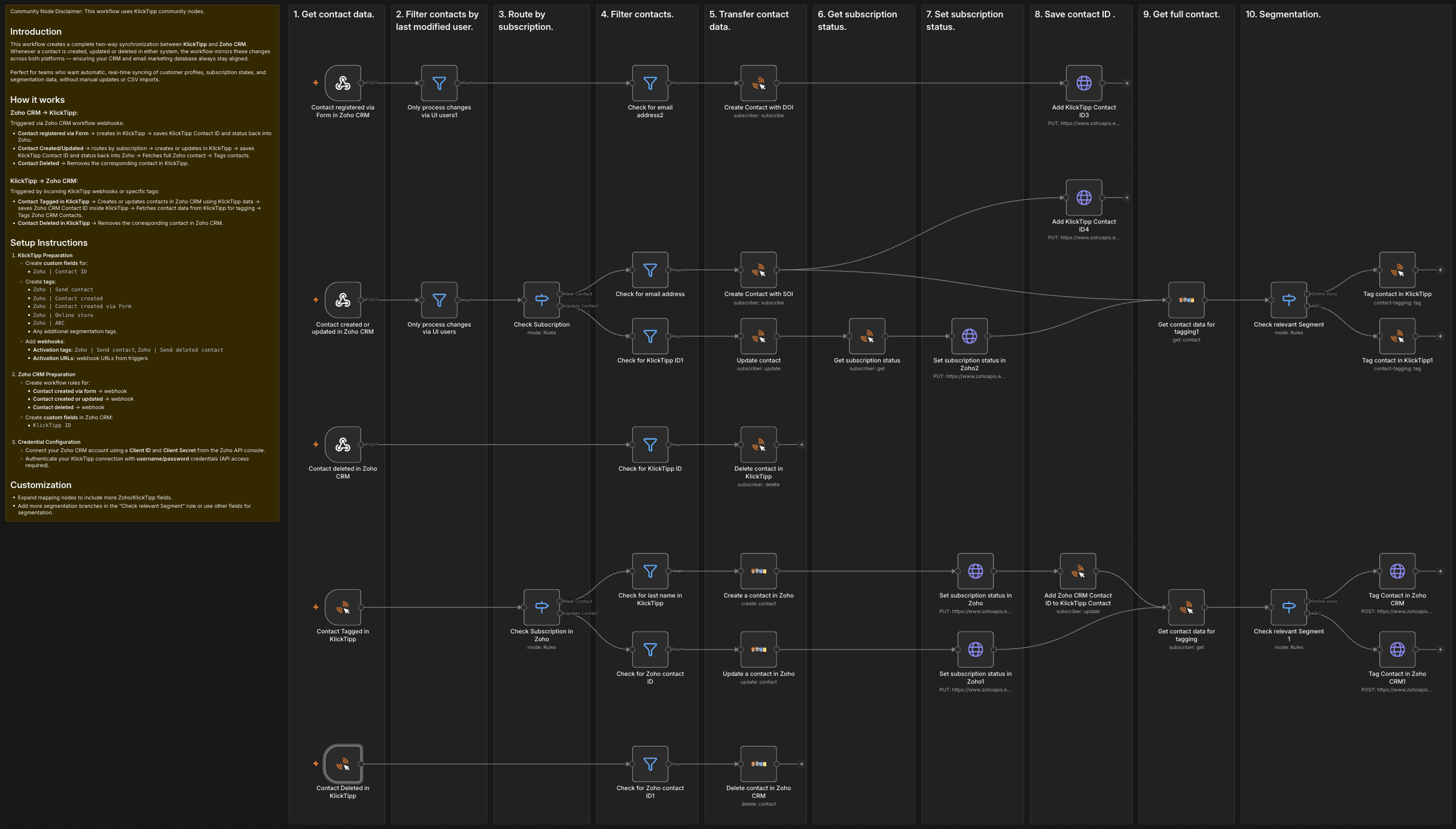
This workflow creates a complete two-way synchronization between KlickTipp and Zoho CRM.
Whenever a contact is created, updated or deleted in either system, the workflow mirrors these changes across both platforms — ensuring your CRM and email marketing database always stay aligned.
Perfect for teams who want automatic, real-time syncing of customer profiles, subscription states, and segmentation data, without manual updates or CSV imports.
How it works
Zoho CRM → KlickTipp:
Triggered via Zoho CRM workflow webhooks:
- Contact registered via Form → creates in KlickTipp → saves KlickTipp Contact ID and status back into Zoho.
- Contact Created/Updated → routes by subscription → creates or updates in KlickTipp → saves KlickTipp Contact ID and status back into Zoho → Fetches full Zoho contact → Tags contacts.
- Contact Deleted → Removes the corresponding contact in KlickTipp.
KlickTipp → Zoho CRM:
Triggered by incoming KlickTipp webhooks or specific tags:
- Contact Tagged in KlickTipp -> Creates or updates contacts in Zoho CRM using KlickTipp data → saves Zoho CRM Contact ID inside KlickTipp → Fetches contact data from KlickTipp for tagging → Tags Zoho CRM Contacts.
- Contact Deleted in KlickTipp → Removes the corresponding contact in Zoho CRM.
Setup Instructions
-
KlickTipp Preparation
- Create custom fields for:
Zoho | Contact ID
- Create tags:
Zoho | Send contactZoho | Contact createdZoho | Contact created via FormZoho | Online storeZoho | ABC- Any additional segmentation tags.
- Add webhooks:
- Activation tags:
Zoho | Send contact,Zoho | Send deleted contact - Activation URLs: webhook URLs from triggers
- Activation tags:
- Create custom fields for:
-
Zoho CRM Preparation
- Create workflow rules for:
- Contact created via form → webhook
- Contact created or updated → webhook
- Contact deleted → webhook
- Create custom fields in Zoho CRM:
KlickTipp ID
- Create workflow rules for:
-
Credential Configuration
- Connect your Zoho CRM account using a Client ID and Client Secret from the Zoho API console.
- Authenticate your KlickTipp connection with username/password credentials (API access required).
Customization
- Expand mapping nodes to include more Zoho/KlickTipp fields.
- Add more segmentation branches in the "Check relevant Segment" rule or use other fields for segmentation.