Back to Templates


Back up & restore n8n workflows with preserved folder structure with GoogleDrive
A. Backup workflows solution to google Drive
✅ What problem does this workflow solve?
If you’re building and managing multiple automations with well-organized nested folders structure, then, losing a workflow due to accidental deletion or misconfiguration, can cost you hours of work and headache.
This can be even more impactful for self-hosted n8n instances.
This template solves that for any n8n setup (cloud or self hosted) by exporting a perfect mirrored setup of a whole n8n project, preserving the nested folder structure and the workflows within it.
All of it is uploaded in google drive under one main backup folder per execution to keep track of different setup versions along time.
🧑💻Who’s it for ?
This workflow is ideal for any n8n user, from beginner to advanced solo/team “flowgrammer” who wants to have a reliable, safe, automated and easy to access backup solution that reflects a perfect mirror of their n8n setup.
✨What it does
-
Scheduled Execution: The workflow runs automatically according to the schedule, could be up to X times a day (or can be triggered manually).
-
Creates backup Folder: It creates a new overall backup folder with a naming convention as “n8n_backup_folder_structure_DDMMYYYY_HHmmss” (i.e “n8n_backup_folder_structure_02022026_123343”) where the whole n8n nested folder structure along with workflows (JSON files) will be saved.
For example if an n8n workflow instance look like this, then same structure will be preserved and reflected on google drive along with the workflows within each folder :
 projects-root-folder/
	└── Your-project-folder-name/
		└── Utilities/
└──Error_management/
	└── error_alerting.json
└──Log_analysis/
└── Reports/
	└── Clients/
		└──Client_A/
		└──Client_B/
└── client_reporting_standard.json
       └── ...
└── workflow_test.json
-
Fetches the non documented n8n API: It connects to your n8n instance via the n8n API, not the documented one, but the one used directly from your UI when you manipulate your instance.
This API has been used instead of the native n8n node because it gives some more features that are being used here such as :- Retrieve the workflow’s parentFolder name
- Retrieve the workflow’s description
- Retrieve the n8n instance’s projectId
- Create an n8n data table
- Get properties of an n8n data table
🛠️How to set up ?
1. Configure Credentials: Make sure you have valid credentials for :
* Google Drive: To allow the workflow to create folders and upload files.
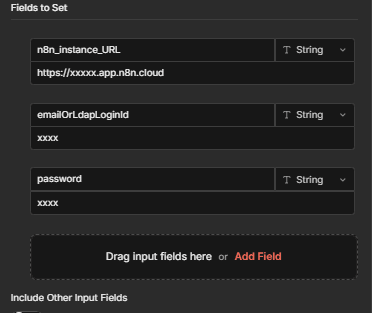
2. Set Your Variables: In the first Set node named "n8n instance/project access details":
* n8n_instance_URL: Paste your n8n instance URL without the “/” at the end. For example : https://myautomations.app.n8n.cloud
* emailOrLdapLoginId: your login email address
* password: your password
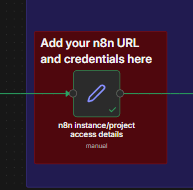
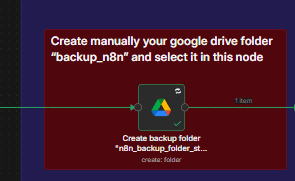
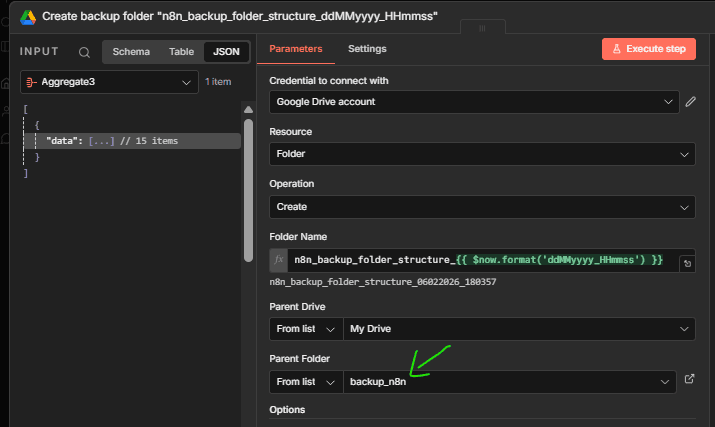
3. Create your main backup folder: Create on your google drive space the main folder where all your backup will be uploaded. For example “my_n8n_backup” and then select it in the node Create backup folder "n8n_backup_folder_structure_ddMMyyyy_HHmmss" ” from the List under “Parent Folder”,
🚀 Activate the workflow, and you're all set!
B. Restore Backup workflows to n8n from google Drive
You can run it manually by adding the specific google drive backup folder name that you want to restore on n8n inside the node "Search for the backup folder in Drive".


After running the workflow you'll see on your n8n the backup folder restored with all your saved folder/subfolders and associated workflows.

And when you open that folder you'll see all your setup successfully restored!
