Back to Templates


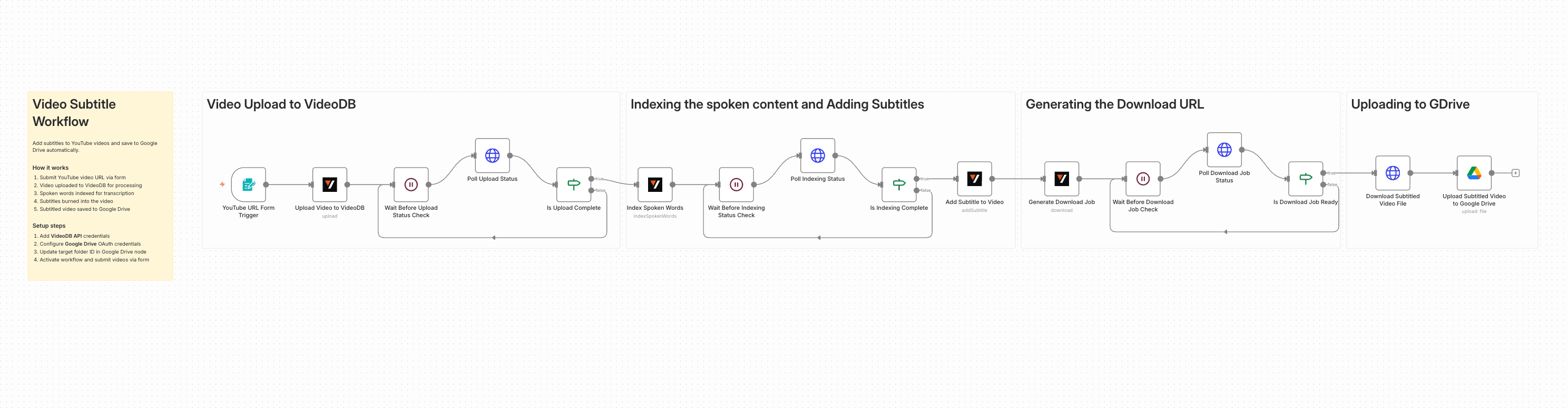
This n8n template demonstrates how to generate subtitle overlays for YouTube videos and save the final files to Google Drive.
It is useful when you want accessible video outputs without manually editing captions in a video editor.
Who’s it for
- Content creators publishing educational or social content
- Teams improving accessibility and watch-time performance
- Agencies preparing client-ready subtitled assets
Good to know
- Subtitle quality depends on audio clarity and speaker overlap.
- Make sure your VideoDB account has enough balance before running this workflow. Track usage rates at console.videodb.io/dashboard/usage.
How it works
- A form trigger receives a YouTube URL.
- n8n uploads the source video to VideoDB.
- VideoDB indexes speech and creates timestamped transcript data.
- A subtitle node renders subtitle overlays into the video output.
- n8n downloads and stores the subtitled file in Google Drive.
How to use
- Add VideoDB and Google Drive credentials.
- Set your destination Drive folder in the upload node.
- Run one sample video to verify subtitle timing and style.
- Activate the workflow for regular use.
Requirements
- VideoDB API key (Get one here)
- Google Drive account with API access
- n8n instance (cloud or self-hosted)
Customising this workflow
- Change subtitle language and rendering settings in the subtitle node.
- Duplicate branches for multilingual subtitle variants.
- Add a review step before final storage.
- Replace Google Drive with S3 or another media destination.
Disclaimer:
This workflow uses VideoDB’s Verified Community Node and will only work on self-hosted n8n instances.