See llms.txt for all machine-readable content.


This workflow takes an image URL and a description of the desired background, then uses the APImage AI API to produce a high-quality image, preserving the subject and applying a natural-looking new background.
Example Result
Here you can see a before-and-after image, generated by APImage, using this workflow.

Who This Workflow is For
This workflow is perfect for anyone looking to generate polished, professional images quickly:
- E-commerce Teams: Ensure consistent product images with uniform, professional backdrops to reinforce brand identity and trust.
- Content Creators: Generate eye-catching visuals for social media, blogs, or marketing campaigns quickly.
- Designers: Produce realistic mockups and conceptual designs without hours of manual editing.
- Businesses of All Sizes: Automate large-scale image pipelines efficiently without expanding staff or budget.
- Anyone Needing AI Imaging: Personal or professional projects can benefit from this automated, high-quality workflow.
How the Workflow Works
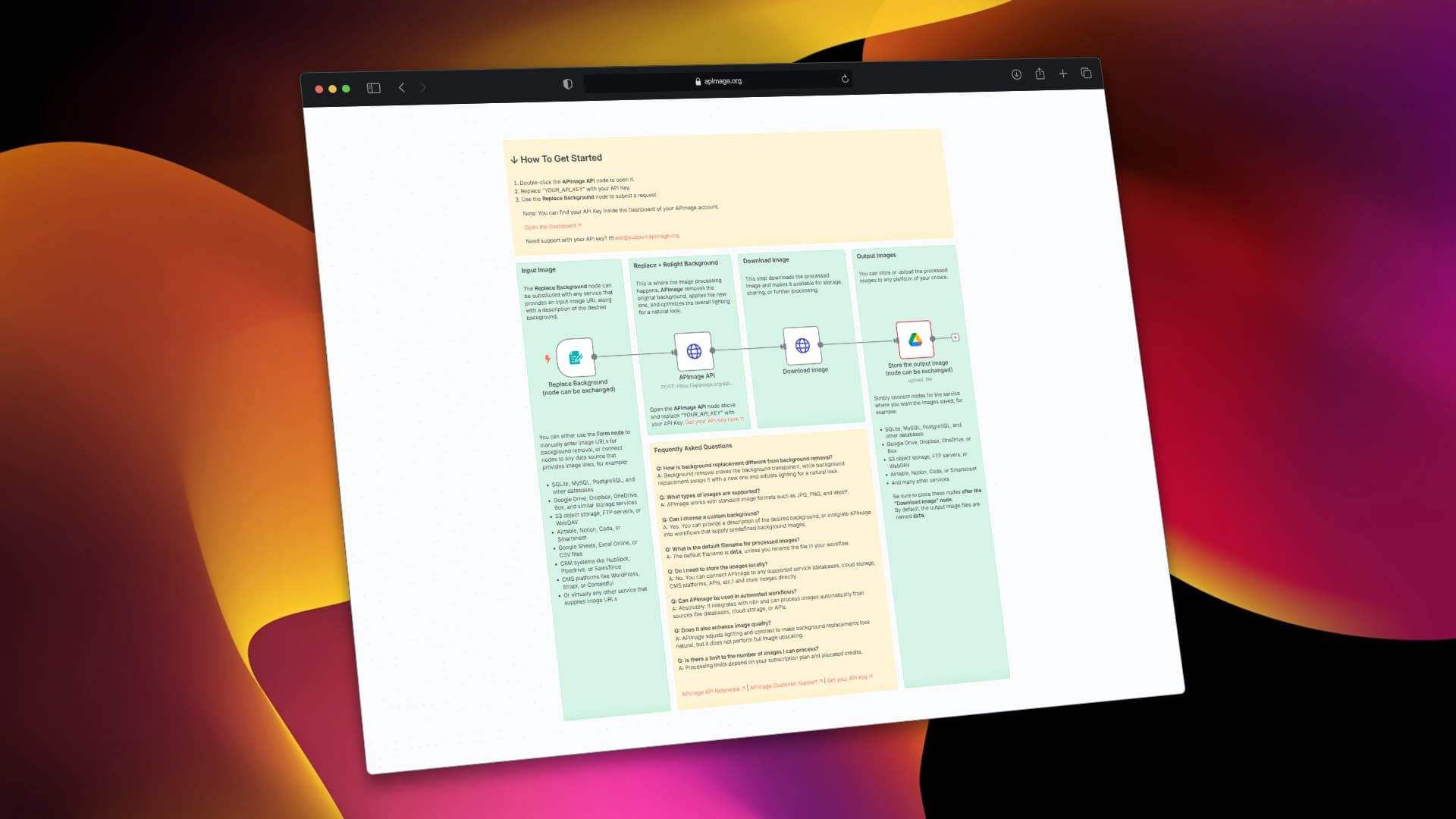
This n8n workflow leverages a Form Trigger and APImage’s AI endpoint to automate background replacement:
       ┌───────────────┐
       │   Input Image │
       │ (URL / source)│
       └───────┬───────┘
               │
               ▼
       ┌──────────────────────────┐
       │  Background Replacement  │
       │   + Lighting Optimization│
       │      (APImage AI)        │
       └───────┬──────────────────┘
               │
               ▼
       ┌──────────────────────┐
       │   Download Image     │
       │ (default name: data) │
       └───────┬──────────────┘
               │
               ▼
       ┌───────────────────────────┐
       │        Output Nodes        │
       │  (DBs, Cloud, CMS, APIs)  │
       └───────────────────────────┘
-
Form Trigger: Collects the image URL and descriptive prompt. Can be swapped with any data source node (databases, cloud storage, APIs).
-
APImage Integration: Processes the image, separates the subject, generates the new background, and preserves realistic lighting and shadows.
-
Download Node: Retrieves the processed image for storage or further use.
-
Output Options: Automatically upload images to Google Drive, Dropbox, Airtable, Notion, Amazon S3, or any other database, creating a fully automated pipeline.
How to Set Up the Workflow
-
Add Your APImage API Key
-
Open the APImage API node.
-
Replace Bearer YOUR_API_KEY with your API key from the APImage Dashboard 🡥.
Test the Workflow
-
Enter a valid image URL and a descriptive prompt in the Replace Background form.
-
Click Run Workflow to see the processed image downloaded locally.
-
Optional: Customize Output Storage
-
Add nodes after the Download step to automatically save images to your preferred storage service or database.
Requirements
-
n8n instance: Cloud or self-hosted instance.
-
APImage account and API key: Required to access the AI API.
How to Customize the Workflow
-
Change Background Prompts: Modify the form or connect to dynamic sources like databases, CMS, or cloud storage.
-
Adjust AI Settings: Customize preserve_subject, light_direction, and light_strength in the APImage node for perfect results.
-
Extend Outputs: Connect to additional platforms for automatic sharing with teams, clients, or CMS systems.
-
Automate Input: Replace manual form triggers with automated triggers from Google Sheets, Airtable, Shopify, or product databases to handle bulk processing without manual intervention.
Example Use Cases
-
E-commerce: Consistent product images with professional backgrounds.
-
Marketing & Social Media: Quickly generate visuals adapted to multiple themes.
-
Photography & Design: Produce mockups, portraits, and conceptual images with realistic lighting.
-
Business Automation: Scale image pipelines efficiently for large volumes.
FAQ
Q: What types of images are supported?
A: JPG, PNG, and WebP are supported.
Q: Can I choose a custom background?
A: Yes. Provide a text description or integrate with other nodes supplying pre-defined backgrounds.
Q: What is the default filename for processed images?
A: The default filename is data, unless renamed in the workflow.
Q: Do I need to store images locally?
A: No. Connect output nodes to databases, cloud storage, or CMS platforms to store images automatically.
Q: Can APImage be used in automated workflows?
A: Absolutely. Integrate with n8n to process images automatically from various sources.
Q: Does it enhance image quality?
A: APImage adjusts lighting and contrast for natural, realistic results.
Q: How is background replacement different from background removal?
A: Background removal makes the background transparent. Background replacement swaps it with a new one and adjusts lighting for a natural look.
Q: Are there limits to the number of images processed?
A: Limits depend on your subscription plan and allocated credits