Back to Templates



Who is this for?
This workflow is designed for Content Marketing Teams, Agencies, and Professional Editors who prefer writing in Google Docs but need a seamless way to publish to WordPress.
Unlike generic "AI Writers" that generate content from scratch (which often fails AI detection), this workflow focuses on "Document Ops"—automating the tedious task of moving, cleaning, and optimizing existing human-written content.
Why use this workflow? (The SEO Advantage)
Most automation templates leave your SEO score at 0/100 because they fail to map RankMath metadata. This workflow hits the ground running with an immediate 65-70/100 RankMath Score.
By using a Gemini AI Agent to analyze your content and mapping it to hidden RankMath API fields, it automatically passes these critical checks:
- ✅ Focus Keyword in SEO Title: AI automatically inserts the target keyword at the beginning.
- ✅ Focus Keyword in Meta Description: AI crafts a compelling description containing the keyword.
- ✅ Focus Keyword in URL: AI generates a clean, short, keyword-rich slug.
- ✅ Focus Keyword at the Start: The workflow intelligently injects a "hook" sentence containing the keyword at the very top of your post.
- ✅ Content Length: Preserves your original long-form content.
How it works
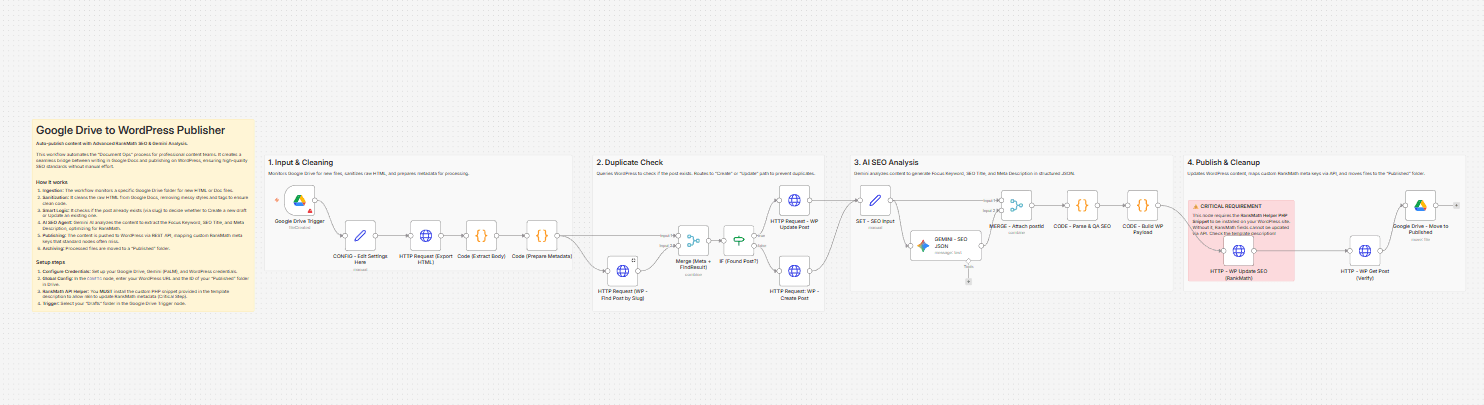
- Monitors Google Drive: Watches for new HTML/Doc files in a specific "Drafts" folder.
- Cleans Content: Sanitizes raw HTML from Google Docs (removing messy styles and tags).
- Smart Duplicate Check: Checks if the post already exists on WordPress (via slug) to decide whether to Create a new draft or Update an existing one.
- AI Analysis (Gemini): Extracts the best Focus Keyword, SEO Title, and Meta Description from your content.
- RankMath Integration: Pushes these SEO values directly into RankMath's custom meta keys.
- Archiving: Moves processed files to a "Published" folder to keep your Drive organized.
Critical Prerequisites (Must Read)
To allow n8n to update RankMath SEO data and prevent 401 Unauthorized errors, you MUST add a helper snippet to your WordPress site.
- Access your WordPress files via FTP/File Manager.
- Navigate to
wp-content/mu-plugins/(Create thefolder mu-pluginsif it doesn't exist). - Create a file named
n8n-rankmath-helper.phpand paste the following code:
<?php
/*
Plugin Name: n8n RankMath & Auth Helper
Description: Fixes Basic Auth Header for n8n and exposes RankMath meta keys to REST API.
*/

// 1. Fix Authorization Header (Solves 401 Errors on Apache/LiteSpeed)
add_filter('wp_is_application_passwords_available', '__return_true');
if ( !function_exists('aiops_enable_basic_auth') ) {
    function aiops_enable_basic_auth() {
        if ( isset( $_SERVER['HTTP_AUTHORIZATION'] ) ) {
            $auth = $_SERVER['HTTP_AUTHORIZATION'];
            if ( strpos( $auth, 'Basic ' ) === 0 ) {
                list( $username, $password ) = explode( ':', base64_decode( substr( $auth, 6 ) ) );
                $_SERVER['PHP_AUTH_USER'] = $username;
                $_SERVER['PHP_AUTH_PW']   = $password;
            }
        }
    }
    add_action('init', 'aiops_enable_basic_auth');
}

// 2. Expose RankMath Meta Keys to REST API
add_action( 'rest_api_init', function () {
    $meta_keys = [
        'rank_math_title',
        'rank_math_description',
        'rank_math_focus_keyword',
        'rank_math_robots',
        'rank_math_canonical_url'
    ];

    foreach ( $meta_keys as $meta_key ) {
        register_meta( 'post', $meta_key, [
            'show_in_rest' => true,
            'single'       => true,
            'type'         => 'string',
            'auth_callback' => function() { return current_user_can( 'edit_posts' ); }
        ] );
    }
});
?>;
How to set up
1. Configure Credentials:
- Google Drive OAuth2 (Drive scopes).
- Google Gemini (PaLM) API Key.
- WordPress: Connect using Application Passwords (Users > Profile > Application Passwords).
2. Global Configuration (First Node):
- Open the node named
CONFIG - Edit Settings Here. - wp_base_url: Enter your site URL (e.g.,
https://your-site.com- no trailing slash). - drive_published_folder_id: Enter the ID of the Google Drive folder where you want to move published files.
3. Trigger Setup:
- Open the
Google Drive Triggernode. - Select your specific "Drafts" folder in the Folder to Watch field.
Future Roadmap
We are actively improving this template. Upcoming V2 will feature:
AI Featured Image Generation: Auto-create branded thumbnails.
Content Illustrations: Auto-insert relevant images into the body content.
Need Help or Want to Customize This?
Contact me for consulting and support:
Email: [email protected]