Back to Templates



Summary
This workflow detects ticket classification events in Beex where the communication channel was WhatsApp, extracts the messages from the interaction, and logs them as activity in the corresponding HubSpot contact.
How it works
-
Beex Trigger
Receives the ticket classification eventOn Managment Createvia a pre-configured callback. -
Filter by Channel
The automation only considers classification events where the communication channel was a WhatsApp message. -
Get Phone
The phone number is used to find the contact to whom the activity should be assigned in HubSpot. The country code must be configured manually. -
Search Contact
Finds the contact in HubSpot using the phone number. -
Get Messages
When a ticket is categorized, its ID and all messages from the interaction can be retrieved from trigger node. -
Routing, Formatting, and Consolidation
We route messages based on their content, whether text, image, or audio. Each message is formatted in HTML, compatible with HubSpot activities. -
Sort Messages
Messages are sorted according to theircreated_atfield. -
Consolidate Chats
Individual messages are consolidated into a single record (all in HTML format). Send all chat content to hs_communication_body in API HubSpot.
Setup Instructions
- Install Beex Nodes: Before importing the template, install the Beex trigger and node packages using the following package names:
n8n-beex-nodes
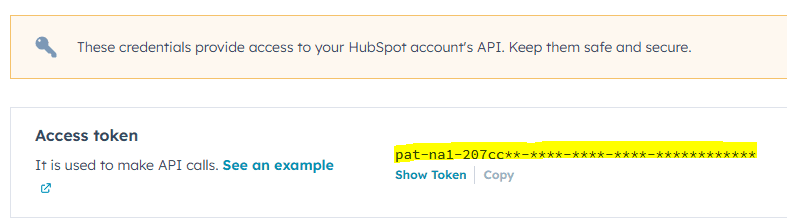
- Configure HubSpot Credentials: Configure your HubSpot connection with the following:
- Access token (typically from a private application)
- Read and write permissions for the Contacts objects
- Configure Beex Credentials: For Beex users with platform access (for testing requests, contact [email protected]):
-
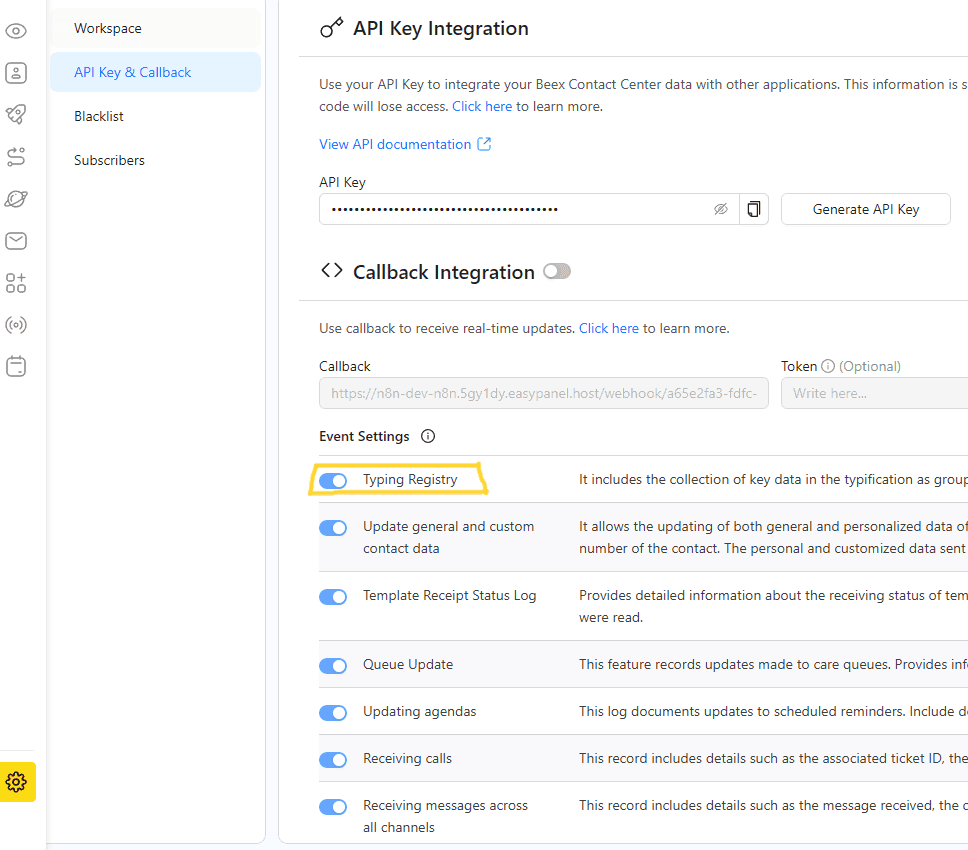
Go to Platform Settings → API Key and Callback.
-
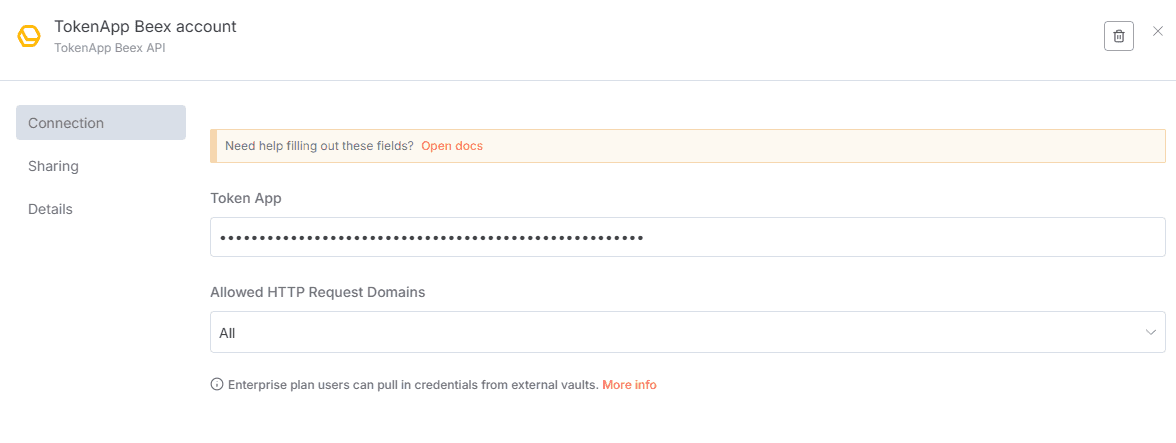
Copy your API key and paste it into the Beex node (Get Messages) in n8n.
-
Activate
Typing Registryin Callback Integration option
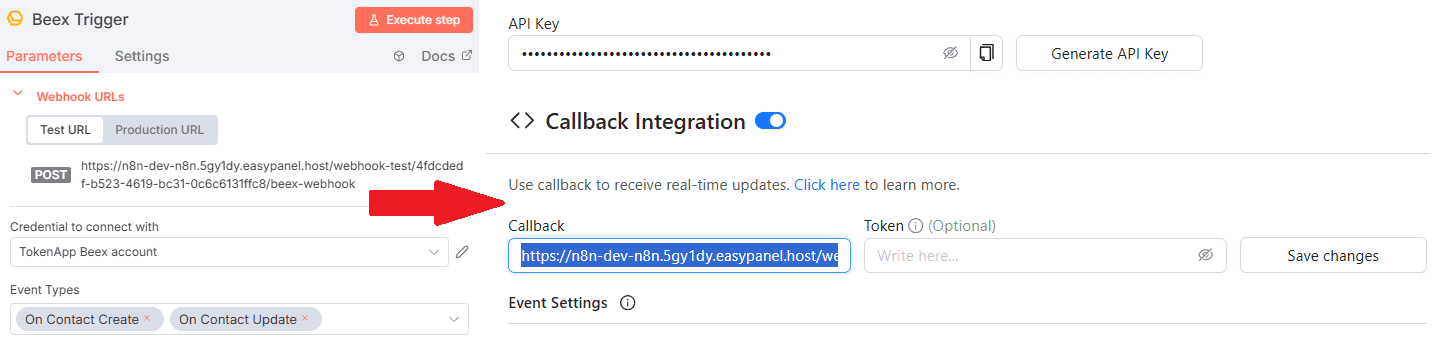
- Configure the Webhook URL: Copy the Webhook URL (Test/Production) from the Beex activation node and paste it into the Callback Integration section in Beex. Save your changes.
Requirements
-
HubSpot: An account with a private application token and read/write permissions for Contacts objects.
-
Beex: An account with permissions to receive Typing Registry events in Callback Integration.
Customization Options
- You can customize the HTML format provided to text, audio, or image messages.