Back to Templates


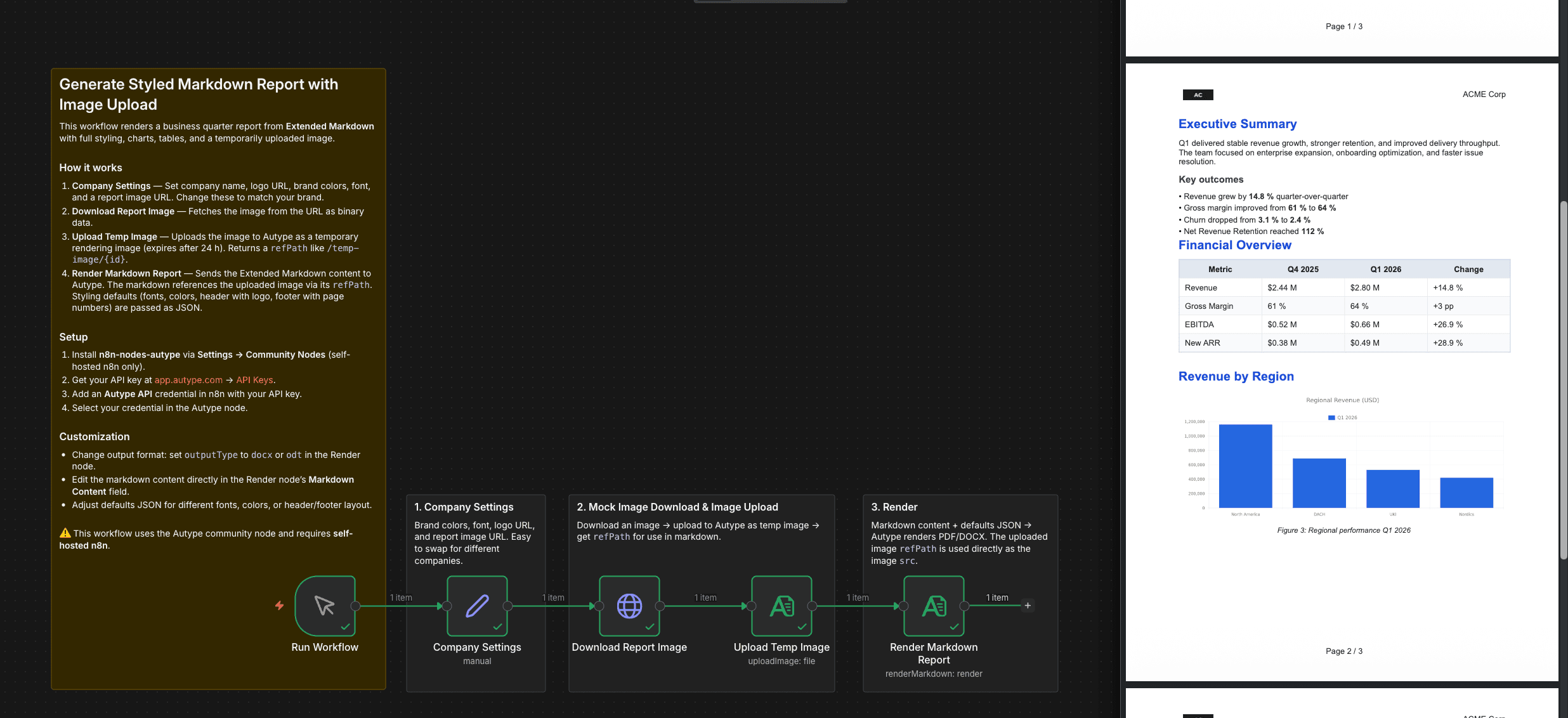
⚠️ Important: This workflow uses the Autype community node and requires a self-hosted n8n instance.
This workflow demonstrates Autype's Extended Markdown engine — the foundation for creating production-ready documents from Markdown. It supports full document layouts with headers, footers, page numbering, cross-references, indices, custom layouts, and advanced diagrams (TikZ, Mermaid, ...). You can generate complete PDF, DOCX, or ODT documents with professional typography, tables, charts, and embedded images.
Who is this for?
This workflow is for developers, operations teams, and business analysts who want to turn structured Markdown into branded documents with a consistent design system. It's ideal if you want to separate content from styling and include uploaded visuals in your final PDF or DOCX output.
What this workflow does
This workflow builds a business quarter report from Markdown and applies a separate style JSON (defaults) to control typography, chart colors, table styling, and header/footer layout. It also downloads a report image via HTTP, uploads it as a temporary Autype image, and injects the returned refPath into the title page before rendering.
The included example report uses:
- A dedicated style configuration node (schema-aligned defaults)
- A cover page with company logo + uploaded content image
- A financial KPI table
- A chart directive for regional performance
- A second chart + page break section for operational metrics
How it works
- Manual Trigger — Starts the workflow on demand.
- Set Document Style JSON — Defines
documentanddefaults(font, color, table style, chart colors, header/footer) plus a company logo URL (placehold.co). - Set Business Report Markdown — Stores the markdown template with placeholders for logo and uploaded title image.
- Download Report Image — Fetches a PNG via HTTP Request (file response).
- Upload Content Image — Uploads the downloaded file using Autype
uploadImageand returns a temporaryrefPath. - Build Markdown + Style Payload — Injects image URLs/refs into markdown and serializes defaults JSON for rendering.
- Render Styled Markdown Report — Renders markdown with defaults and downloads the final document.
How Image Upload Works
For images that aren't publicly accessible (e.g., internal dashboards, screenshots), Autype provides a temporary image upload mechanism:
- Download the image as binary data (HTTP Request, file upload, etc.)
- Upload to Autype via the
uploadImageoperation → returns arefPath(e.g.,/temp-image/{id}) - Reference the image in Markdown using the
refPathdirectly:{width=520} - Temporary images expire after 24 hours and are automatically cleaned up
How Markdown works with Autype
Autype uses an Extended Markdown syntax that transforms standard Markdown into a full-featured document markup system for professional document creation. This goes far beyond basic Markdown with specialized elements for document structure, layout, and advanced content.
Key extended elements include:
:::toc— Table of contents with automatic heading extraction:::chart— Interactive charts and data visualizations:::table— Enhanced tables with styling and formatting options---page{align=center}---directives — Page layout, orientation, and section breaks- Cross-references, indices, diagrams (mermaid, tikz, ...), equations and bibliography support
For the complete markup reference and all available elements, see the Autype Markup Reference.
Setup
- Install the Autype community node (
n8n-nodes-autype) via Settings → Community Nodes. - Create an Autype API credential with your API key from app.autype.com. See API Keys in Settings.
- In
Download Report Image, replace the sample URL with your own dashboard/chart image if needed. - In
Set Document Style JSON, adjust typography/colors/header/footer as required. - Import this workflow and click Test Workflow to generate the example quarter report.
Requirements
- n8n instance with community node support
- Autype account with API key
n8n-nodes-autypecommunity node installed
How to customize
- Style system: Keep report content in markdown and update design centrally in
Set Document Style JSON(defaults). - Title page assets: Replace the logo URL (
companyLogoUrl) and the downloaded content image source URL. - Output format: Change
document.typefrompdftodocxfor Word-compatible output. - Extended syntax: Use markdown tables, chart directives (
:::chart), page directives, and text2 blocks for richer reports.