Back to Templates


💬 Chat with Your Finances on Telegram
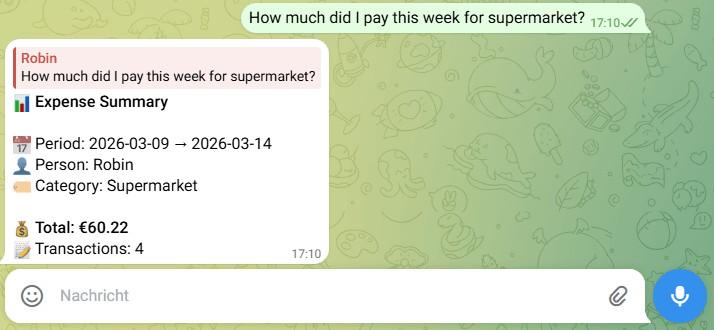
Ask questions like “How much did I spend on food last month?” and get instant answers from your financial data — directly in Telegram.
This workflow connects your Google Sheets expense log to an AI-powered query engine that understands natural language, resolves ambiguous categories and person names, and sends back a clean formatted summary in Telegram.
No spreadsheets. No dashboards.
Just chat with your financial data.
⚡ How it works
Simply send a message like:
- How much did we spend on groceries last month?
- Show me a breakdown by category for this week.
The workflow automatically:
- Parses your intent using GPT-4.1-nano
- Resolves categories and person names via mapping tables
- Filters and aggregates expense data from Google Sheets
- Returns a formatted summary directly in Telegram
If a category or person is unknown, the workflow uses AI to suggest the closest match and asks the user to confirm via Telegram inline buttons.
Confirmed aliases are saved automatically, making the system self-learning over time.
✨ Key Features
- Natural language queries in English and German
- AI intent parsing with GPT-4.1-nano (time range, person, category, filters)
- Self-learning entity resolution for categories and names
- Interactive disambiguation via Telegram inline buttons
- Relative date support (
this week,last month,this year) - Group-by breakdowns by category or person
- Shared expense filtering via
common_onlyflag - Multi-user support via Chat ID allowlist
📋 Requirements
To run this workflow you need:
- Telegram Bot (created via
@BotFather) - OpenAI API key
- Four Google Sheets
Required sheets:
expensesexpense_categoriescategories_mappingperson_mapping
⏱ Setup Time
Approx. 15 minutes
All required configuration steps are documented directly inside the workflow using "Action Required" notes in each workflow layer.
Examples