Back to Templates


⚠️ Important: This workflow uses the Autype community node and requires a self-hosted n8n instance.
Send an email with a document request and optional PDF attachments. The AI assistant can summarize documents, compare multiple PDFs, draft new content, or create documents from scratch with internet research — all output as professionally branded PDFs using Autype. The finished document is delivered back to the sender via email.
Who is this for?
Consultants, analysts, project managers, and teams who need on-demand document generation. Send an email and get a branded PDF back — whether it's a summary, comparison, draft, or a freshly researched document.
Concrete example: Attach 3 PDF proposals and write "Compare these proposals and recommend the best option" — each PDF is OCR'd via Autype Lens, the AI assistant produces a structured comparison with tables, and you receive a branded PDF within minutes.
This also works as an additional skill for an AI agent. Instead of an email trigger, connect the workflow to a webhook or chat trigger so an agent can call it when a user asks "create a summary of these documents."
What this workflow does
On each incoming email, the workflow:
- Extracts the email subject + body as the document request, and detects PDF attachments
- Processes each attached PDF sequentially: uploads to Autype, extracts text via Lens OCR
- Combines all OCR results into a single context
- Downloads the Autype Extended Markdown syntax reference so the AI knows the output format
- Passes the request text + all PDF content to an AI Document Assistant with Firecrawl and SerpAPI as research tools
- The assistant determines the task type (summarize, compare, draft, or create from scratch) and produces the document in Autype Extended Markdown
- Autype renders the markdown to a branded PDF with company styling (fonts, colors, heading styles, tables, header with logo, footer with page numbers)
- The PDF is delivered back to the original sender via email
Output structure

How it works
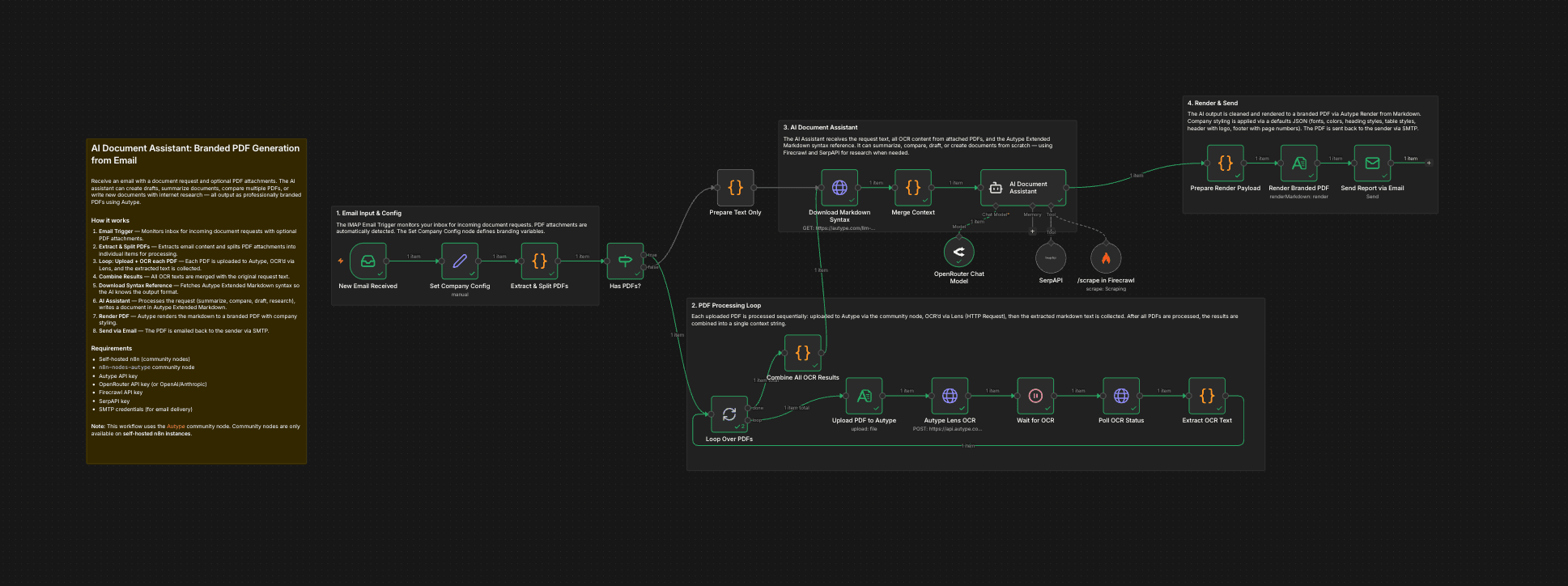
- New Email Received — An IMAP Email Trigger monitors your inbox for incoming document requests. The email subject and body become the request text; PDF attachments are automatically detected.
- Set Company Config — A Set node defines your company name, logo URL, and brand color. Edit these values once.
- Extract & Split PDFs — A Code node extracts the sender email, combines subject + body as request text, and detects PDF attachments. Each PDF is split into a separate item for loop processing. If no PDFs are attached, a single item with just the text is output.
- Has PDFs? — An IF node routes the flow: emails with PDF attachments enter the processing loop, text-only emails skip directly to the AI Assistant.
- Loop Over PDFs — A Split In Batches node processes each PDF sequentially (one at a time to avoid API rate limits).
- Upload PDF to Autype — Each PDF is uploaded to Autype via the community node (
resource: file). - Autype Lens OCR — An HTTP Request node triggers Autype Lens OCR on the uploaded file with
outputFormat: "md". This uses Generic Auth Type → Header Auth withX-API-Keyset to your Autype API key. Cost: 4 credits per page. A dedicated community node for Lens is planned. - Wait for OCR → Poll OCR Status — Waits 8 seconds, then polls the job status via HTTP Request (same Header Auth credential). The loop continues to the next PDF after each OCR completes.
- Extract OCR Text — Extracts the markdown text from each OCR result and stores it with the original filename.
- Combine All OCR Results — After the loop completes, collects all OCR texts and combines them into a single context string with labeled sections per PDF.
- Prepare Text Only — For emails without PDFs, passes just the request text forward.
- Download Markdown Syntax — Fetches the Autype Extended Markdown syntax reference so the AI knows the output format.
- Merge Context — Combines the request text, all OCR content, and the markdown syntax reference into a single item for the AI Agent.
- AI Document Assistant — An n8n AI Agent (OpenRouter) with two tools:
- Firecrawl Scrape — Scrapes specific URLs to extract page content as markdown.
- SerpAPI — Web search for current information, statistics, and facts.
- The assistant determines the task type (summarize, compare, draft, or create from scratch). The system prompt limits tool usage to max 5 calls and prioritizes attached PDF content.
- Prepare Render Payload — Cleans the AI output (strips code fences), generates a filename, and prepares branding variables.
- Render Branded PDF — Autype Render from Markdown generates the PDF with a full
defaultsJSON for company styling: Roboto font, heading colors from brand color, styled tables with colored headers, header with company logo, and footer with page numbers. See the defaults schema for all options. - Send Report via Email — SMTP sends the PDF as an attachment back to the original email sender.
Setup
- Install the Autype community node (
n8n-nodes-autype) via Settings > Community Nodes. - Create an Autype API credential with your API key from app.autype.com. See API Keys in Settings.
- Create a Header Auth credential for the Lens OCR HTTP Request nodes:
- Go to Credentials > New > Header Auth
- Name:
X-API-Key - Value: your Autype API key (same key as step 2)
- Assign this credential to the "Autype Lens OCR" and "Poll OCR Status" nodes.
- Create an OpenRouter API credential (or replace the chat model with OpenAI/Anthropic).
- Create an IMAP credential for the email inbox to monitor.
- Create an SMTP credential for sending emails.
- Get a Firecrawl API key from firecrawl.dev and create a Firecrawl credential.
- Get a SerpAPI key from serpapi.com and create a SerpAPI credential.
- Import this workflow and assign your credentials to each node.
- Edit the Set Company Config node:
companyName— Your company name (appears in header/footer)companyLogoUrl— URL to your company logo (PNG/JPEG, publicly accessible)brandColor— Hex color for headings and table headers (e.g.#1a5276)
- Update the Send Report via Email node with your sender email address.
- Activate the workflow — any new email to the monitored inbox triggers document generation.
Note: This is a community node. It is not maintained by the n8n team. You need a self-hosted n8n instance to use community nodes.
Requirements
- Self-hosted n8n instance (community nodes are not available on n8n Cloud)
- Autype account with API key (Lens OCR costs 4 credits/page, Render from Markdown costs 1 credit)
n8n-nodes-autypecommunity node installed- OpenRouter API key (or OpenAI/Anthropic — configurable chat model)
- IMAP credentials for the monitored inbox
- SMTP credentials for sending emails
- Firecrawl API key (free tier: 500 pages/month)
- SerpAPI key (serpapi.com)
How to customize
- Change AI model: Replace the OpenRouter Chat Model sub-node with OpenAI, Anthropic Claude, Google Gemini, or any LangChain-compatible chat model.
- Add more research tools: Add additional tool nodes for specialized APIs — Google Scholar, SEC filings, PubMed, or internal knowledge bases.
- Customize styling: Edit the
defaultsJSON in the Render Branded PDF node to change fonts, colors, heading styles, table designs, header/footer content, and spacing. See the defaults schema for all available options. - Replace email trigger: Swap the IMAP Email Trigger with a Form Trigger, Webhook, or Chat Trigger to accept input from different sources.
- Add watermark: Insert an Autype Watermark step after rendering to stamp "DRAFT" or "CONFIDENTIAL" on every page.
- Save to cloud storage: Add a Google Drive, S3, or SharePoint upload step after rendering (before or instead of SMTP).
- Adjust OCR wait time: For large PDFs (10+ pages), increase the Wait node from 8 to 15-20 seconds, or add a retry loop that polls until status is COMPLETED.
- Use Autype community node for Lens: Once the Autype community node adds Lens OCR support, replace the HTTP Request OCR/poll chain with a single Autype node.
- Change output format: Switch from Render from Markdown to Render from JSON for a better manipulation experience