See llms.txt for all machine-readable content.



What Is This?
This workflow is an improvement of this workflow by Greg Brzezinka.
This workflow connects to KSeF (Krajowy System e-Faktur — Poland's national e-invoicing platform) and automatically downloads both issued and received invoices into a NocoDB database, sending you a human-readable HTML notification for each new one via email.
It handles the full KSeF v2 authentication flow — RSA-OAEP token encryption, session initialization, status polling, and token redemption — so you don't have to think about it. Once authenticated, it fetches invoice metadata, filters out duplicates already in your database, retrieves the full XML details for each new invoice, renders them as styled HTML, and stores everything in NocoDB before terminating the session cleanly.
Who Is It For?
Built for Polish businesses, accountants, and developers who need a reliable, automated way to pull KSeF invoices into a structured database without manually logging into the government portal.
Particularly useful if you want to track both cost (received) and issued invoices in one place, get notified by email whenever a new invoice arrives, or build downstream automation on top of your invoice data — without touching the KSeF UI.
How Does It Work?
The workflow consists of a one-time Setup subflow and the main recurring sync flow.
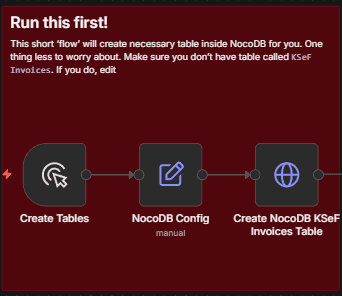
Setup: Create NocoDB Table Before running the main flow for the first time, trigger the Setup subflow manually. It reads your NocoDB base URL and Base ID from the NocoDB Config node and calls the NocoDB v3 Meta API to create a KSeF Invoices table with the full schema — including fields for ksefNumber, invoiceNumber, dates, seller/buyer JSON, amounts, currency, invoice type, HTML content, and a type single-select column distinguishing issued from cost invoices. Run this once and it's done.
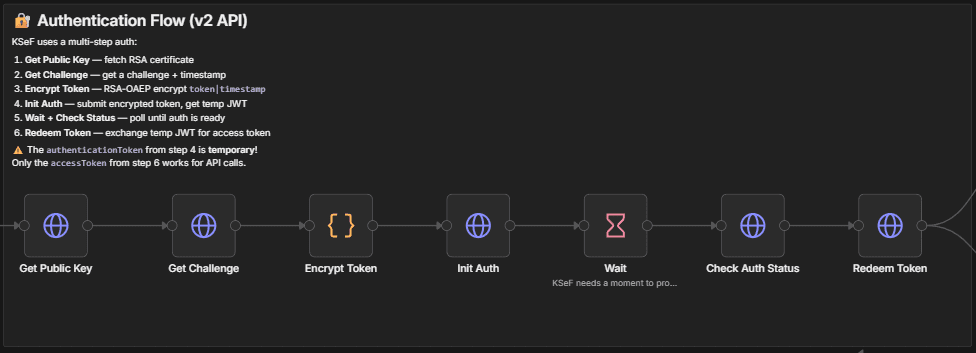
1. Authenticate with KSeF KSeF uses a multi-step v2 auth flow. The workflow fetches the platform's RSA public key certificate, requests a challenge timestamp, encrypts your API token using RSA-OAEP SHA-256, submits it to initialize a session, waits briefly for KSeF to process the request, checks the auth status, and finally redeems the temporary JWT for a working access token.
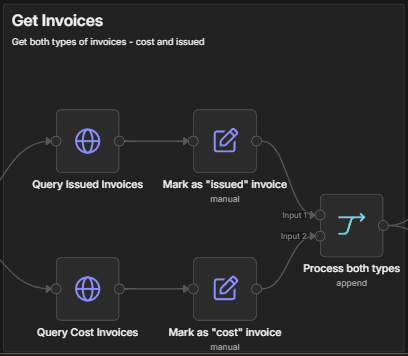
2. Fetch Invoice Metadata Using the access token, the workflow queries the KSeF /invoices/query/metadata endpoint twice in parallel — once for Subject1 (issued invoices) and once for Subject2 (received/cost invoices). Both result sets are paginated automatically and merged. Each invoice is tagged with its type (issued or cost) before being combined into a single list.
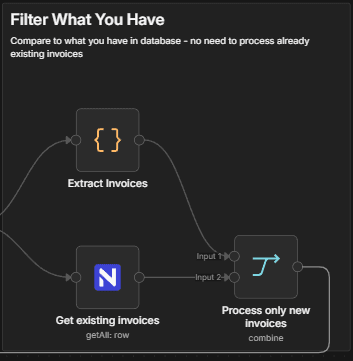
3. Filter & Process Only New Invoices The workflow fetches all records already stored in your NocoDB table and compares them against the freshly retrieved KSeF list using ksefNumber as the unique key. Only invoices not yet in the database are passed forward — preventing duplicates on every run.
For each new invoice, the workflow calls the KSeF detail endpoint to retrieve the full FA(2) XML document, parses it into JSON, strips namespace prefixes, and renders it as a clean, print-ready HTML invoice. The HTML covers seller/buyer details, line items, VAT breakdown, payment terms, bank account, and settlement data — supporting both standard VAT invoices and advance/order-based invoice types.
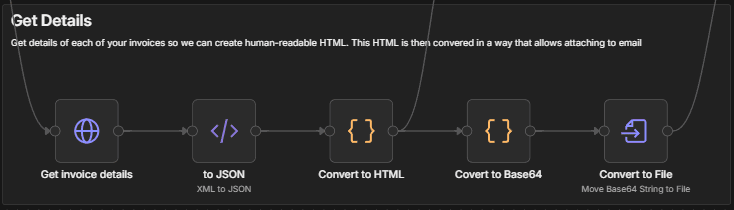
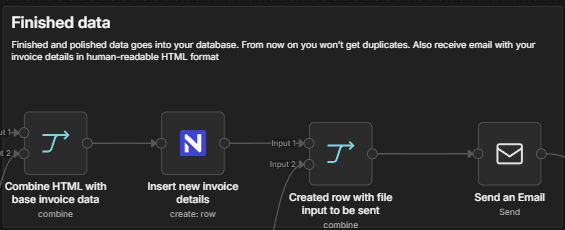
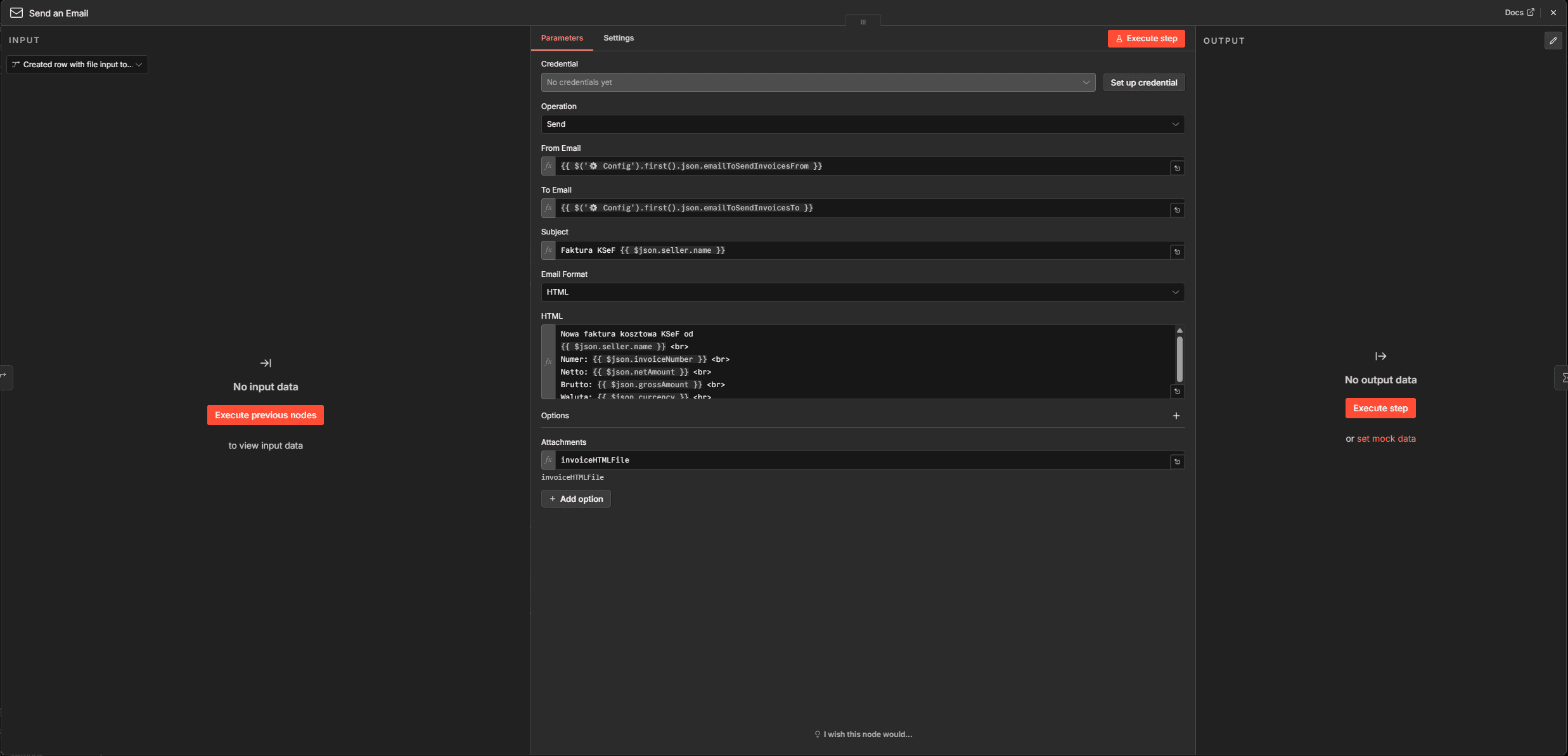
4. Store & Notify The structured invoice data and rendered HTML are inserted into NocoDB as a new row. The HTML is simultaneously base64-encoded and attached to a notification email — giving you a human-readable copy in your inbox for every invoice processed. After all invoices are handled, the KSeF auth session is terminated to close the connection securely.
How To Set It Up?
Prerequisites:
- An active n8n instance (self-hosted or cloud)
- A NocoDB instance with API token access and an existing base
- A KSeF API token (obtained from the KSeF portal for your NIP)
- An SMTP credential configured in n8n for email delivery
Step 1 — Create the NocoDB table:
Open the NocoDB Config node in the Setup subflow and fill in:
NocoDB Url— your NocoDB instance URL (e.g.https://app.nocodb.comfor cloud, or your self-hosted address)Base ID— the ID of the NocoDB base where the table should be createdTable Name— defaults toKSeF Invoices; change only if you already have a table with that name
Connect your NocoDB API token credential to the Create NocoDB KSeF Invoices Table node, then trigger Create Tables manually. This creates the full table schema and only needs to be run once.
Step 2 — Configure the main flow:
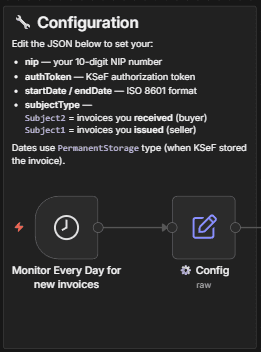
Open the ⚙️ Config node and fill in:
nip— your 10-digit Polish NIP numberauthToken— your KSeF authorization tokenstartDate/endDate— ISO 8601 date range for the invoice query (defaults to the last 7 days)emailToSendInvoicesTo— recipient address for invoice notification emailsemailToSendInvoicesFrom— sender address for the same emails
Step 3 — Connect NocoDB nodes:
In the Insert new invoice details and Get existing invoices nodes, connect your NocoDB API token credential and select the table created in Step 1.
Step 4 — Connect email:
Connect your SMTP credential to the Send an Email node. The subject and body are pre-filled with invoice data but can be customized to match your preferred format.
What's More?
Automated Table Setup The included Setup subflow creates the entire NocoDB table schema via the v3 Meta API — no manual column configuration needed. Just fill in your Base ID, run it once, and your table is ready.
Full KSeF v2 Auth — Handled Automatically The RSA-OAEP encryption, challenge flow, and token redemption are all handled inside the workflow using Node.js's built-in crypto module. No external libraries or manual token management required.
Duplicate Prevention Every run compares freshly fetched invoices against your NocoDB table before processing anything. Only invoices with a ksefNumber not yet in the database are downloaded and stored — making the workflow safe to run frequently without creating duplicates.
Rich HTML Invoice Rendering Each invoice is rendered as a fully styled, print-ready HTML document — including seller/buyer blocks, line item tables, VAT totals, payment deadlines, bank account numbers, and legal footer data. The HTML is both stored in NocoDB and attached to the notification email, so you always have a readable copy at hand.
Both Invoice Directions in One Run Issued invoices (Subject1) and received/cost invoices (Subject2) are fetched and processed in the same workflow run, tagged by type, and stored in the same table — giving you a unified view of your KSeF activity.
Session Cleanup After all invoices are processed, the workflow calls the KSeF session termination endpoint to close the authenticated session, reducing exposure in case your token is ever compromised.
This workflow is an improvement of this workflow by Greg Brzezinka.
Happy hacking! For custom n8n workflow solutions or dedicated software development, reach out at [email protected] or visit sailingbyte.com.