


What Is This?
This workflow is an automated employee time tracking and reporting system that monitors weekly work hours via TMetric, then delivers personalized summaries directly to each team member on Slack. It compares actual logged hours against individual work schedules, accounts for approved time-off requests, and flags anyone falling behind their hourly quota.
It works with any team using TMetric for time tracking and Slack for communication, making it ideal for remote-first companies, IT agencies, and consulting firms managing distributed teams.
Who Is It For?
Designed for team leads, operations managers, and HR departments in small to medium-sized companies who want effortless visibility into employee time tracking compliance — without micromanaging or manually pulling reports.
Software development agencies, MSPs, and consulting firms billing clients by the hour will find this especially valuable, as it keeps employees accountable and ensures time entries are complete and up to date before payroll or invoicing cycles.
How Does It Work?
The workflow operates in two modes: a one-time Setup and a recurring Weekly Report.
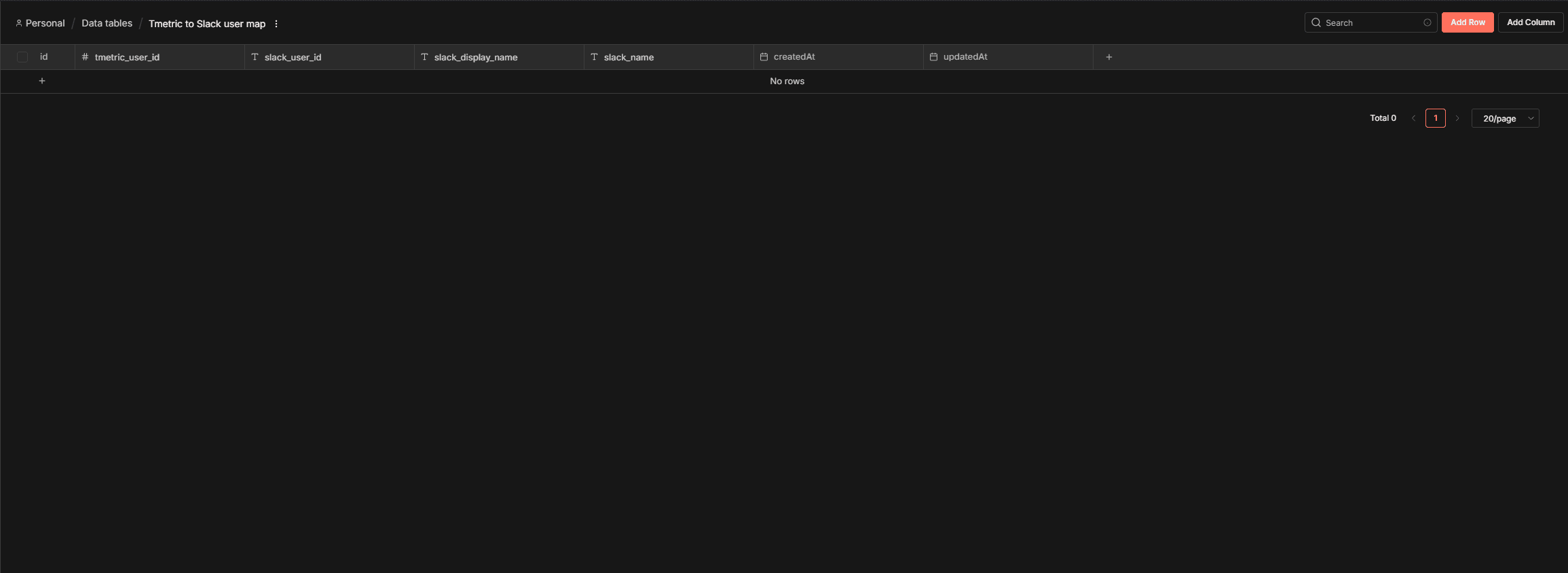
Setup builds a mapping table between TMetric and Slack user accounts. It checks whether the required N8N Data Table already exists, creates it if not, then fetches all TMetric and Slack users. Each Slack user receives a message asking them to identify their corresponding TMetric account via an interactive dropdown form. Responses are saved to the Data Table for use in subsequent runs.
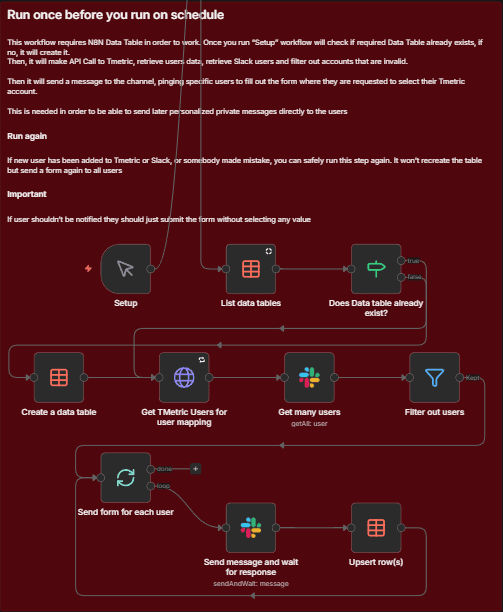
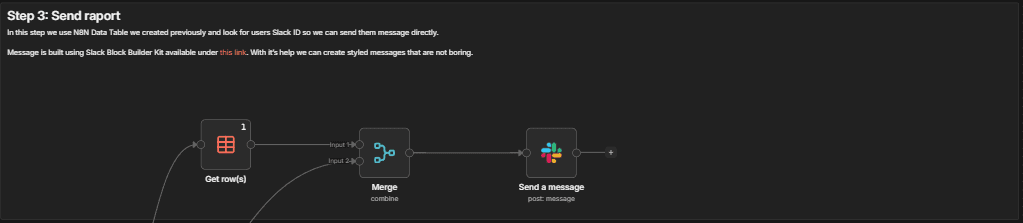
Weekly Report runs automatically every Friday at 4:00 PM. It fetches users, their work schedules, and approved time-off requests from TMetric, then processes each employee individually — retrieving their time entries, filtering out any currently running tasks, and calculating total hours worked. The workflow accounts for time-off when determining expected hours, then computes how far ahead or behind schedule each person is. Finally, it looks up each user's Slack ID from the mapping table and sends them a personalized Block Kit message summarizing their week: hours worked, schedule adherence status, and a project-by-project breakdown.
How To Set It Up?
Prerequisites:
- An active N8N account or self-hosted instance
- A TMetric account with API access
- A Slack workspace with bot permissions
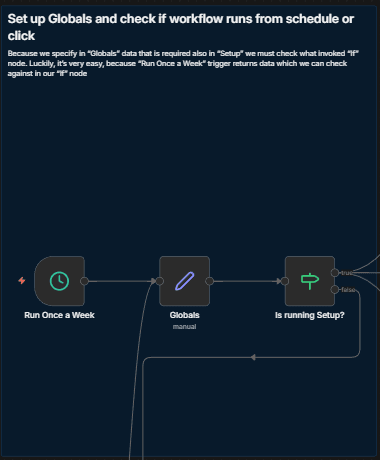
Step 1: Configure the Globals node
- tmAccountId — found in your TMetric URL:
https://app.tmetric.com/#/tracker/YOUR_ID/ - Allow hours missing percentage — tolerance threshold before flagging a user as behind (default: 10%)
- tmetricToSlackUserDataTableName — name of the N8N Data Table used for user mapping (default:
Tmetric to Slack user map)
Step 2: Set up TMetric authentication
Open any HTTP Request node, select Authentication → Generic Credential Type → Header Auth, and create a new credential:
- Name:
Authorization - Value:
<Your TMetric API Key>
You can generate an API key in your TMetric account settings. Full API documentation is available here.
Step 3: Configure Slack credentials
Connect your Slack workspace using OAuth2 in the Slack nodes. Ensure your bot has permissions to list users and send direct messages.
Step 4: Run Setup
Trigger the Setup manual trigger once. It will create the mapping table and send a form to each Slack user. Once all responses are collected, the workflow is ready for scheduled operation.
Step 5: Customize the Slack message (optional)
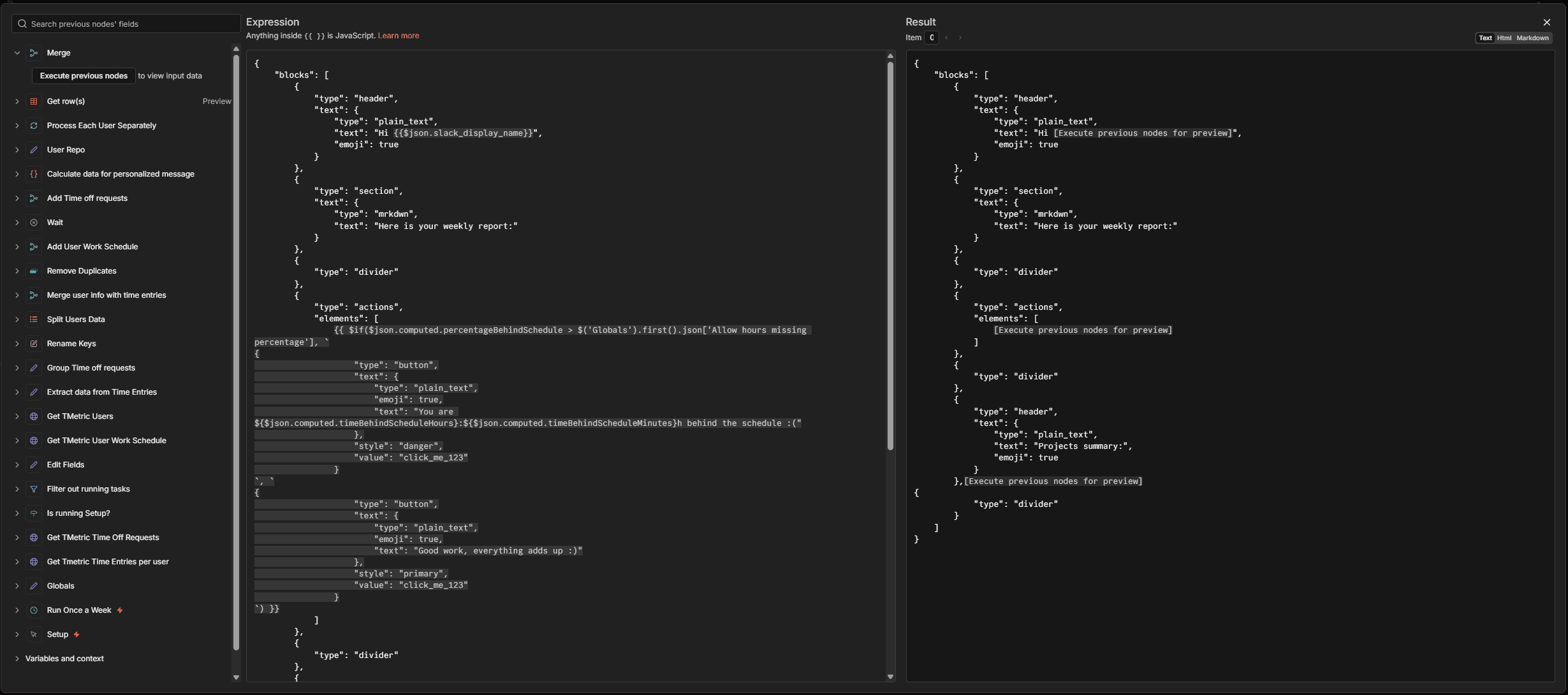
Edit the Send a message node to adjust the message layout, change delivery from DM to a channel, or add additional fields to the report.
What's More?
Flexible time-off handling: Approved time-off requests are subtracted from expected working hours, ensuring employees aren't penalized for legitimate absences.
Running task filtering: Time entries without an end time are excluded from calculations, preventing inflated hours from active timers.
Visual status indicators: Slack messages use color-coded action buttons — green for on-track employees, red for those behind schedule — giving recipients immediate visual feedback at a glance.
Project breakdown: Each report includes a per-project summary showing time spent across the reporting period, giving employees and managers full transparency into where hours went.
Safe re-runs: The Setup flow can be triggered again at any time to onboard new team members or correct mapping mistakes without affecting existing records.
Need help? Reach out at [email protected] or visit sailingbyte.com.
Happy hacking!